Campaign Reporting
Campaign reporting helps you understand how your campaigns are performing so you can make informed decisions about what to improve next. Transpond brings together key metrics such as engagement, conversions, and delivery to help you quickly see what’s working, spot issues early, and demonstrate the impact of your efforts. This not only saves time but also helps you optimise future campaigns with greater confidence. Reports are also useful for sharing results with stakeholders. Clear metrics help explain the impact of marketing activity and support decisions around strategy, budget, or list growth efforts.
Transpond provides reports for email campaigns, SMS campaigns, social campaigns, landing pages and website forms.
Who can use this feature? User roles with read/write access to Reports
Available on: Free, Starter, Growth, Advanced and Ultimate
Reporting on a Specific Campaign
For each email, SMS or social campaign you send, Transpond provides an overview of the campaign performance and more detailed analytics for open, click and unsubscribe rates. Select a campaign to view its performance metrics. The information available will vary depending on the campaign type.
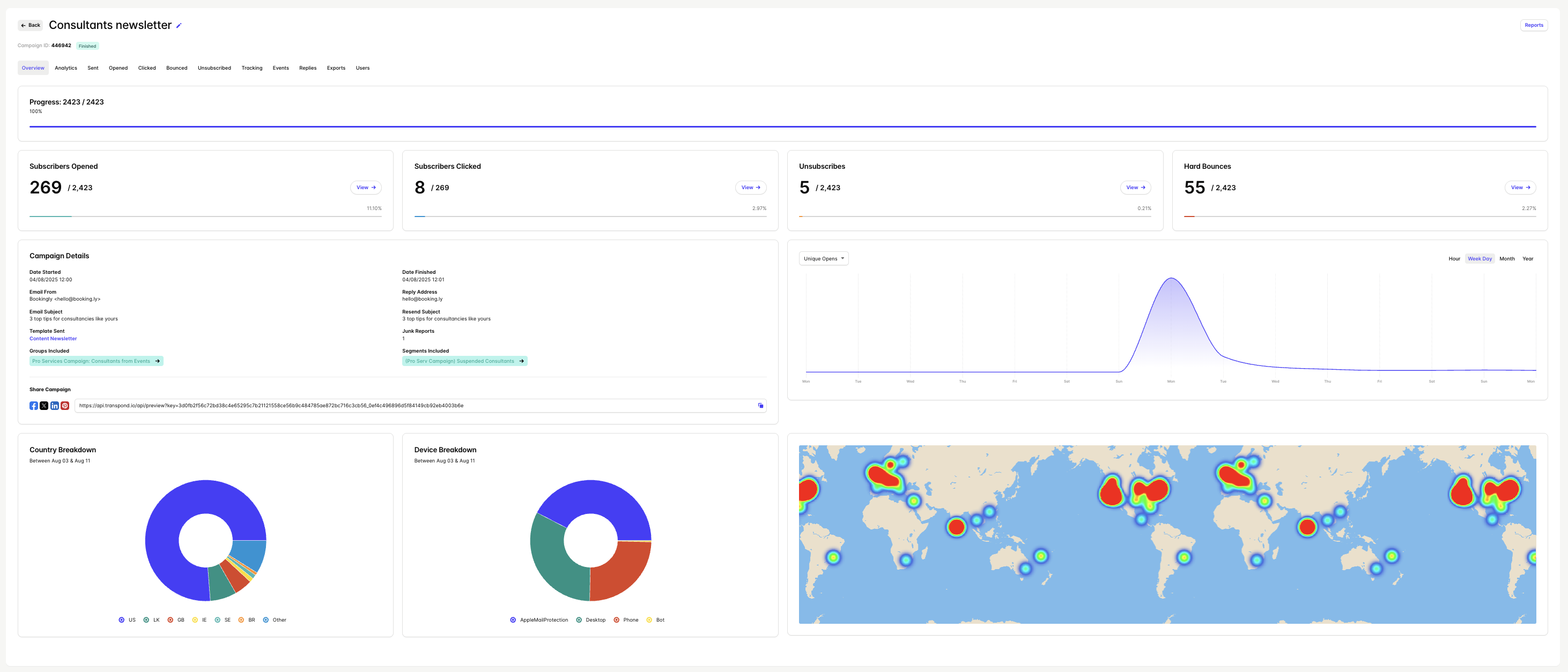
In addition to campaign-specific reports, you can create custom reports that combine multiple campaigns to measure performance over time or for certain campaigns.
- Email Campaign Reporting
- SMS Campaign Reporting
- Social Campaign Reporting
Reporting on Forms and Landing Pages
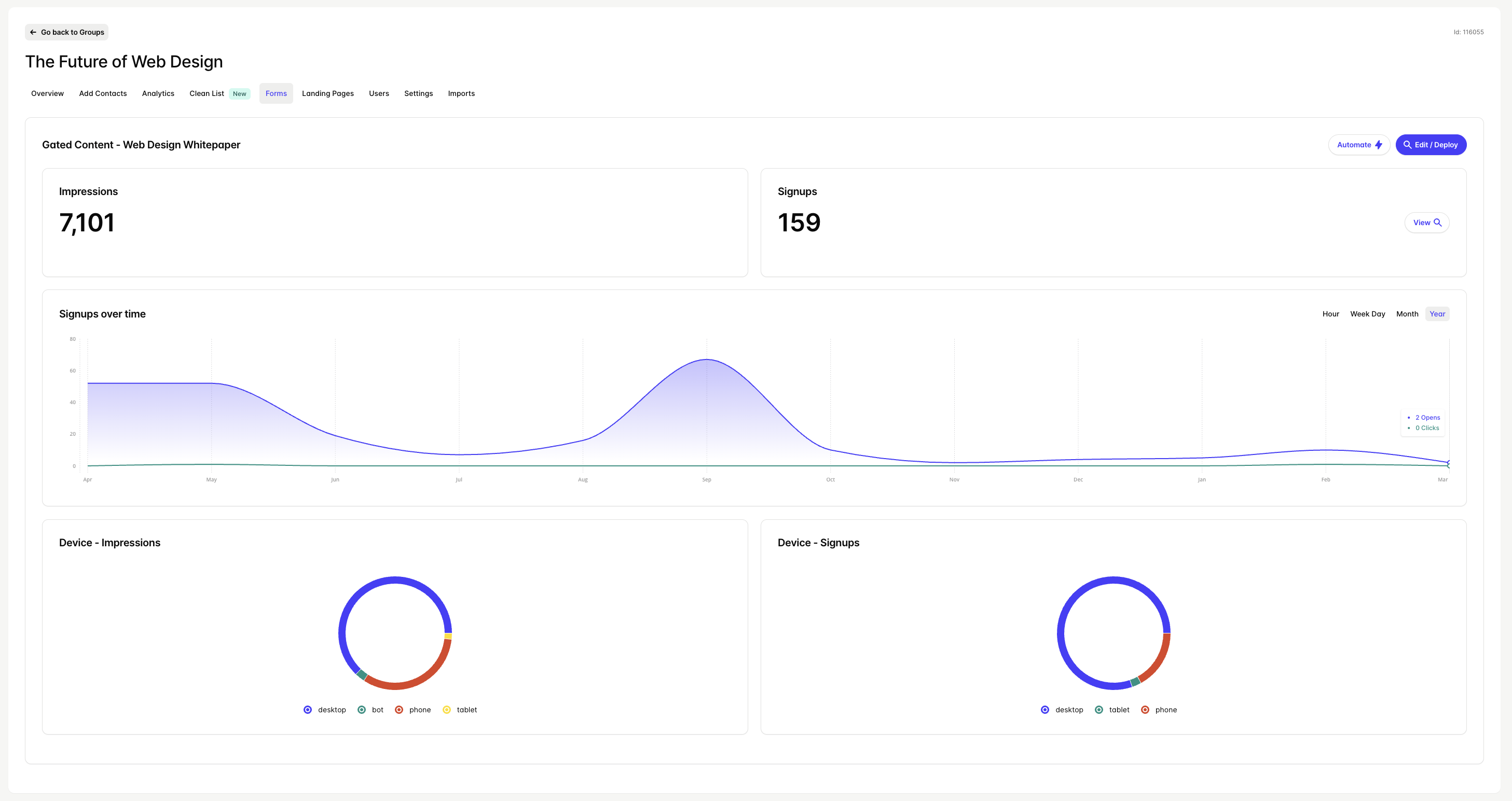
Once you have created a web form or landing page, you can track the impressions and signups. The report also shows the breakdown of device impressions and signups, so you can track if visitors or signups are interacting on mobile or desktop.
Creating Custom Reports
Custom Reports in Transpond let you report across multiple campaigns, helping you move beyond one-off results and see the bigger picture of your performance. It allows you to identify trends, such as whether engagement is improving, declining, or staying consistent, so you can adjust your strategy with confidence.
Creating a Custom Report
- Click Campaigns > All Campaigns
- Click Reports
- Click +Create a Report
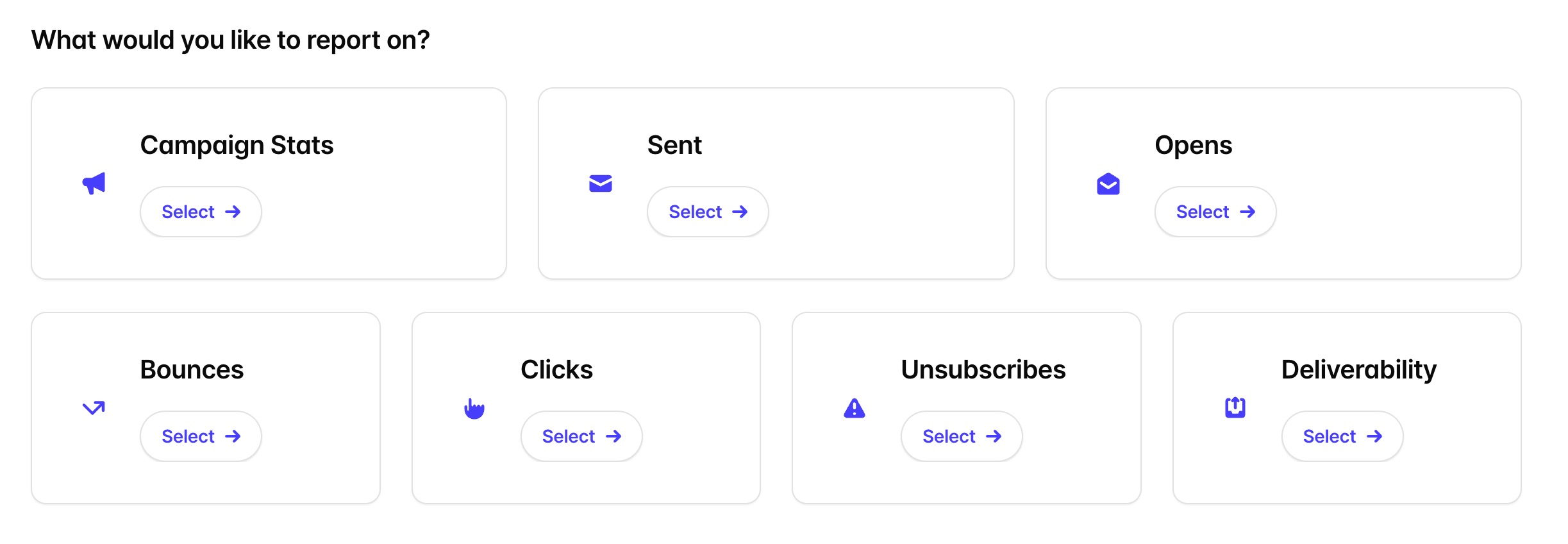
- Click the type of Report you would like to create. There are options for:
- Campaign stats - cumulative data for all campaigns included.
- Sent - send data on a per-subscriber basis, for all campaigns included.
- Opens - opens on a per-subscriber basis, for all campaigns included.
- Bounces - per-subscriber bounce entries with details of each specific bounce message.
- Clicks - clicks on a per-subscriber basis, for all campaigns included.
- Unsubscribes - per contact, showing the campaign the unsubscribe was initiated.
- Deliverability - sends and opens per domain, including open percentage and cumulative bounce & unsubscribe numbers.
- When you've selected the report you want, you need to specify a date range, which campaigns to include and which subscriber fields to include in the report (if applicable). You can also choose to rename the report if you'd like.
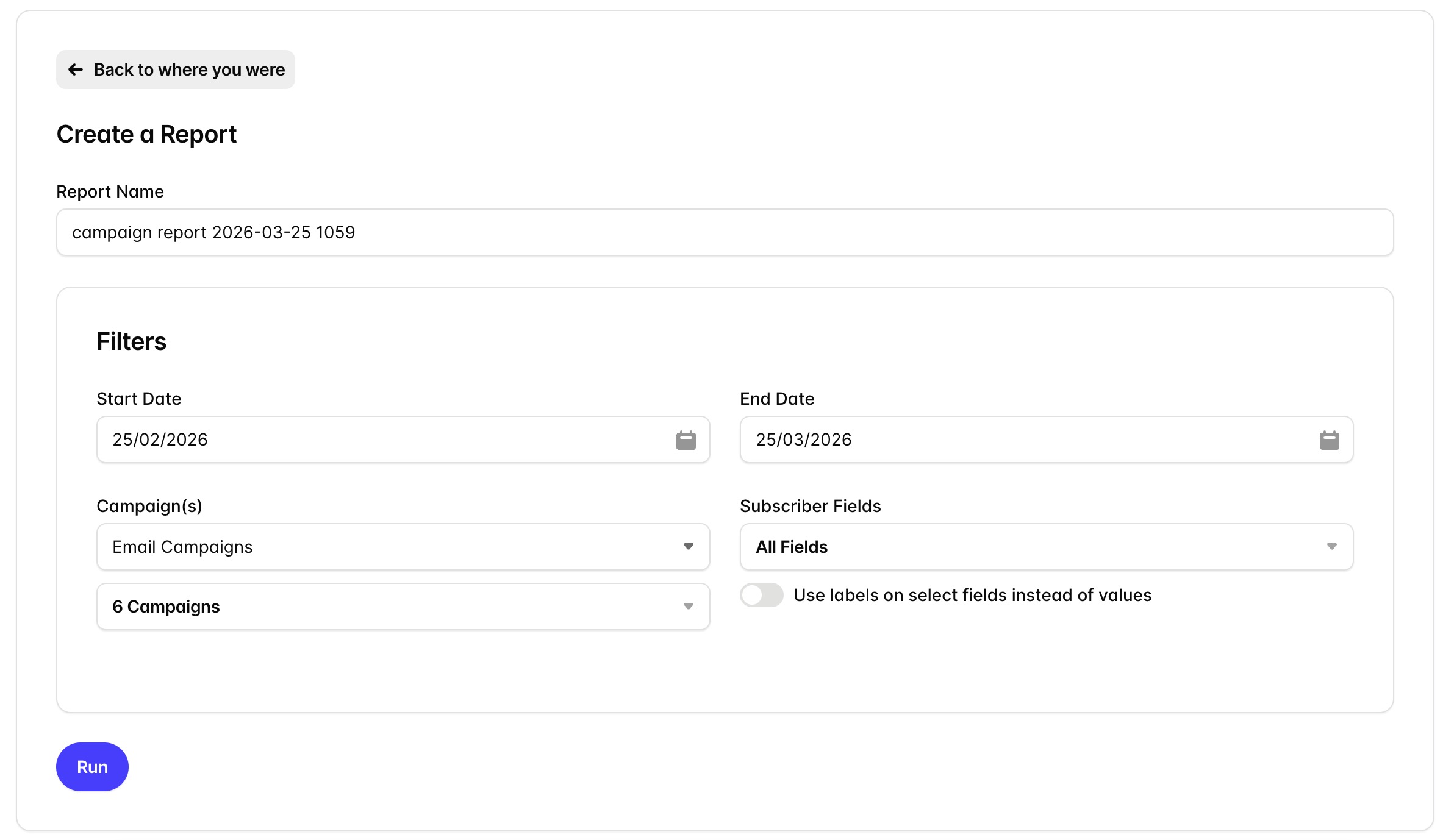
- Click Run to run the report. Once it's completed, the report will automatically download to your computer as a CSV file.
Reports for a large number of campaigns can take some time to generate. You can leave the page and come back to it later. Once generated, reports are available in the list of reports for easy access in the future.