Email Campaign Reports
Email campaign reports help you understand what is working and what isn't with your campaigns, and where to focus next. In Transpond, campaign reports turn raw sending data into clear insights you can use to improve engagement, deliverability, and conversions.
If you want to report on multiple campaigns at once, you can create Custom Reports.
View an Email Campaign Report
For every email campaign you send from Transpond, a campaign report will be created.
- To view a report, go to Campaigns > Email
- Click on the name of a finished campaign to open the report
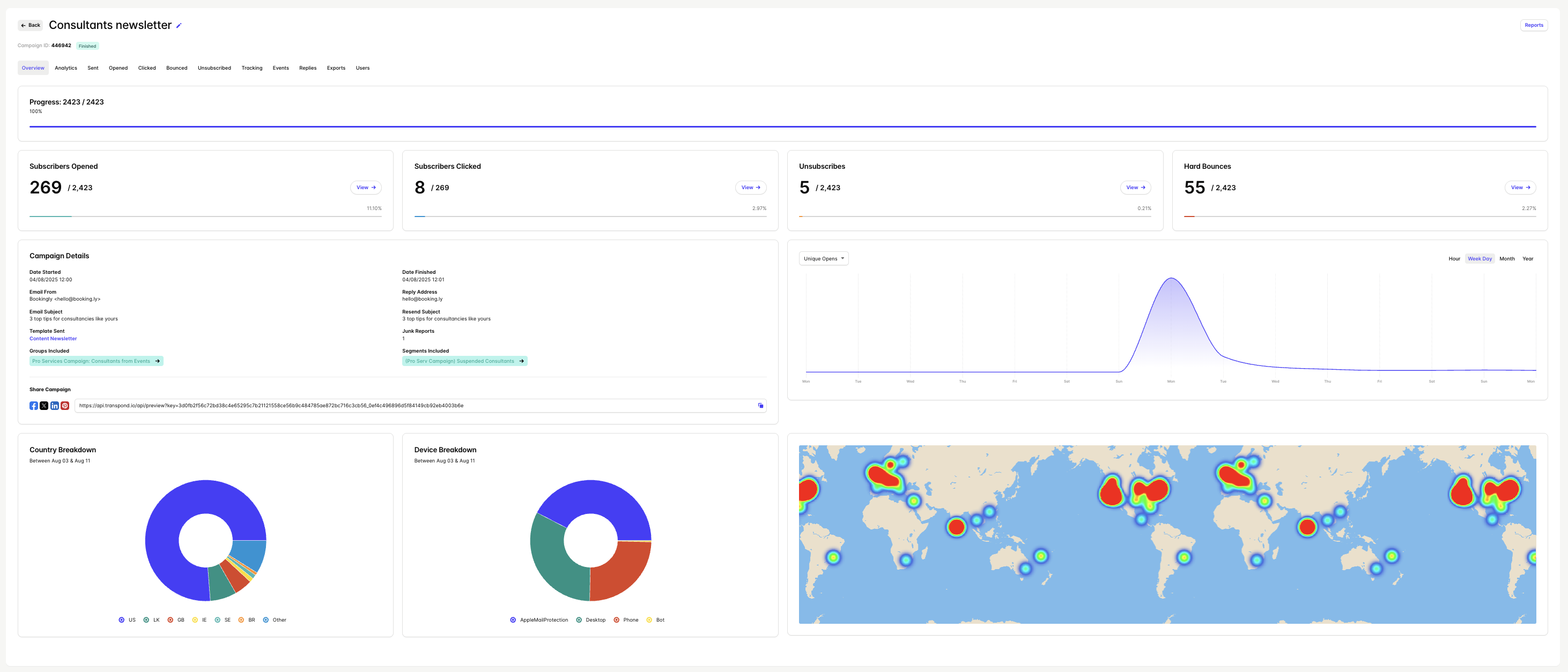
The Overview tab provides a quick snapshot of the campaign performance. Use the tabs along the top of the report for deeper analysis of the campaign metrics.
Understanding Email Campaign Reports
Overview - The Overview tab provides a snapshot of overall campaign performance with metrics for opens, clicks, unsubscribes and bounces.
Analytics - The Analytics tab provides a breakdown of campaign opens by domain and by Country.
Sent - The Sent tab provides a sending timeline for the campaign.
Opened - The Opened tab shows which recipients opened the email and when.
Clicked - The Clicked tab provides a detailed view of which links in the campaign have been clicked, how many times, and by whom.
Bounced - The Bounced tab shows which recipients bounced and when.
Unsubscribed - The Unsubscribed tab shows which recipients unsubscribed and when.
Tracking - The Tracking tab shows the actions subscribers took on your website after clicking a link in the campaign. You need to enable Site Tracking.
Events - The Events tab shows which Events have been triggered as a result of the campaign. You need to enable Site Tracking and create an Event.
Replies - The Replies tab displays any replies to your campaign. In order to track replies, you must connect a mailbox.
Exports - The Exports tab displays a list of all exports created for the campaign.
Users - The Users tab allows you to control which non-admin Users in your Transpond account are able to see the results of the campaign.
Open and Click Rates
Open and click rates help you understand how your emails are performing, so you can see what’s working, what’s not, and where to improve. These metrics give you a quick, reliable view of how your audience is engaging with your messages. For a more comprehensive measure of engagement, we recommend looking at open and click rates alongside other metrics such as bounces, unsubscribes or replies.
How Open and Click Rates Are Calculated
Your open rate is the percentage of delivered emails that were opened by recipients. Transpond adds a tiny, transparent image to every email campaign and counts how often the image is downloaded. Your recipients will not be able to see this image. As Transpond relies on the image to be downloaded in order to track the open rate, this is not 100% accurate. Some recipients may have image downloads turned off in their email client, in which case the image will not download, and the open will not be tracked.
Your click rate is the percentage of delivered emails that registered at least one click.
Anti-spam security measures from email providers can make the open and click rates less reliable as these security measures pre-open emails and pre-click links to check for malicious content. As a result, an email may appear opened or clicked even if the recipient never interacted with it. Where Transpond is able to detect robot clicks and robot opens, you can opt to exclude it from reports to give a more accurate measure of engagement.