Organizing your Contacts with Groups
Groups help you organize your contacts so you can send the right messages to the right people. They also give you more control over subscriptions, helping you avoid mistakes and reduce unnecessary unsubscribes.
You’ll need at least one group before you can start adding contacts.
Who can use this feature? Anyone
Available on: Free, Starter, Growth, Advanced and Ultimate
Why Use Groups
Groups make it easier to manage who receives what.
They help you:
- Send more relevant messages to specific audiences
- Reduce mistakes when choosing recipients
- Save time by reusing the same audience setup
- Let contacts choose what they want to receive without unsubscribing from everything
For example, a contact can unsubscribe from marketing emails but still receive important updates if they belong to more than one group.
Add a Group
- In Transpond, click Contacts.
- Select Groups.
- Click + Add a New Group.
- Complete the group details.
- Click Add New Group.
Your group is now ready to use.
Group Defaults
Each group includes default settings that are used when sending emails. Setting these up carefully saves time later and keeps your messages clear and consistent for contacts.
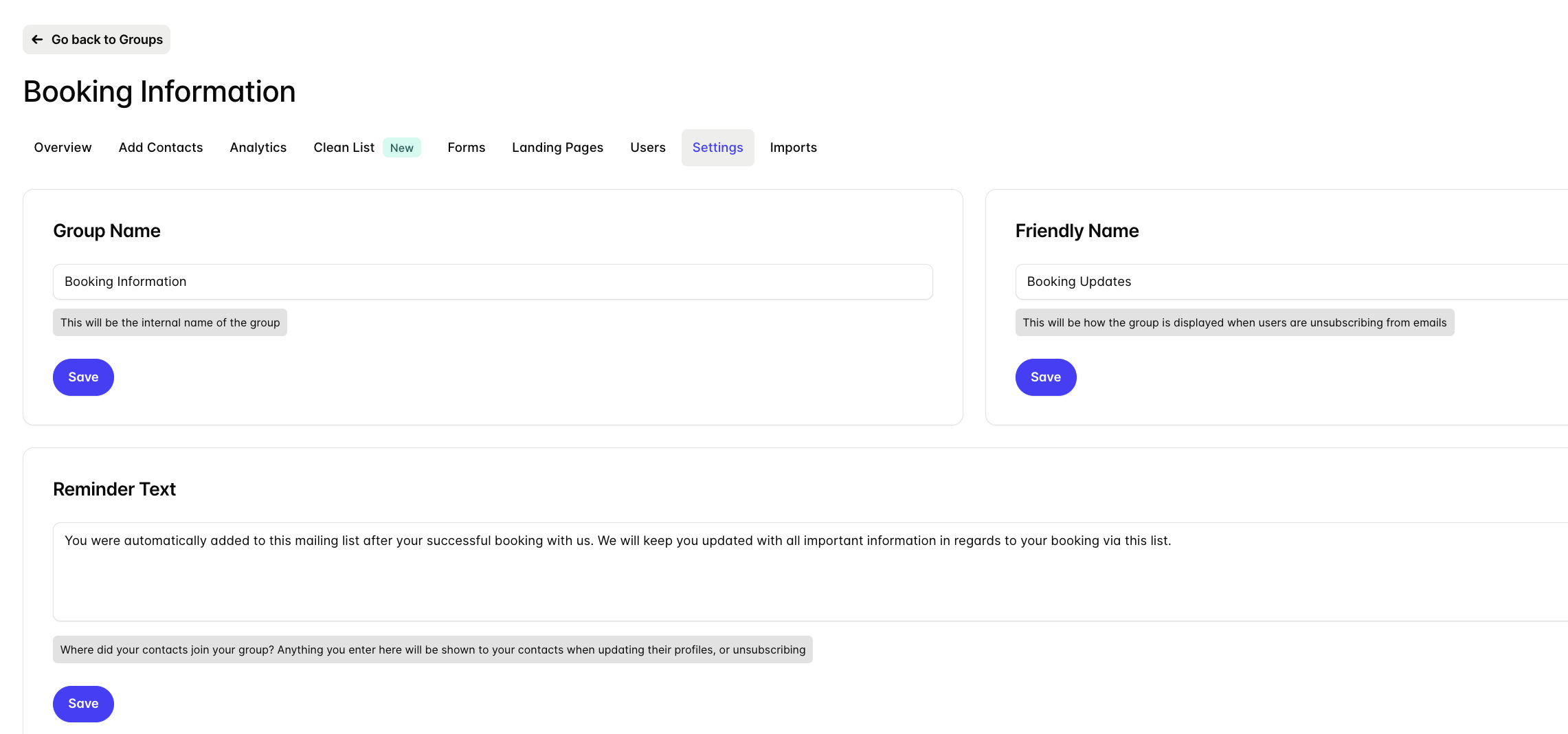
Group Name
This is the internal name for your team. Contacts won’t see it. Use a clear, descriptive name so it’s easy to find and manage your groups.
Friendly Name
This is the name your contacts see when they manage their preferences.
Choose something familiar and easy to understand, such as “Product Updates” or “Monthly Newsletter”. A clear Friendly Name helps contacts recognize why they’re receiving emails and reduces confusion or accidental unsubscribes.
Default From Name
This is the sender name used by default when you email this group. Setting this once helps keep your emails consistent and easy to recognise in the inbox.
Default From Email Address
This is the default sending address for the group. It reduces manual setup and lowers the risk of sending from the wrong address.
Subscriber Reminder Text
This explains why a contact is part of the group. It’s shown when they view their profile.
Use plain language to remind contacts how they signed up or why they’re receiving messages. This helps build trust and reduces complaints.
How Groups Help Manage Subscriptions
Groups give contacts more control over what they receive without losing important communication.
For example, a contact might be in both a Marketing group and a Customer Updates group. They can unsubscribe from marketing emails while still receiving important updates.
This helps you:
- Keep important messages reaching the right people
- Reduce full unsubscribes
- Give contacts clearer, more useful choices
How to Hide a Group from Unsubscribes
In some cases, you may not want a group to appear in a contact’s unsubscribe or preference options for example, groups used for important service or legal updates.
By default, contacts see all their groups when they click Unsubscribe or Update Profile. You can hide specific groups from this list:
- Go to Contacts > Groups.
- Click on the Group name.
- Click the Settings tab.
- Scroll to Other Settings.
- Toggle Hidden from Unsubscribers.
- Click Save.
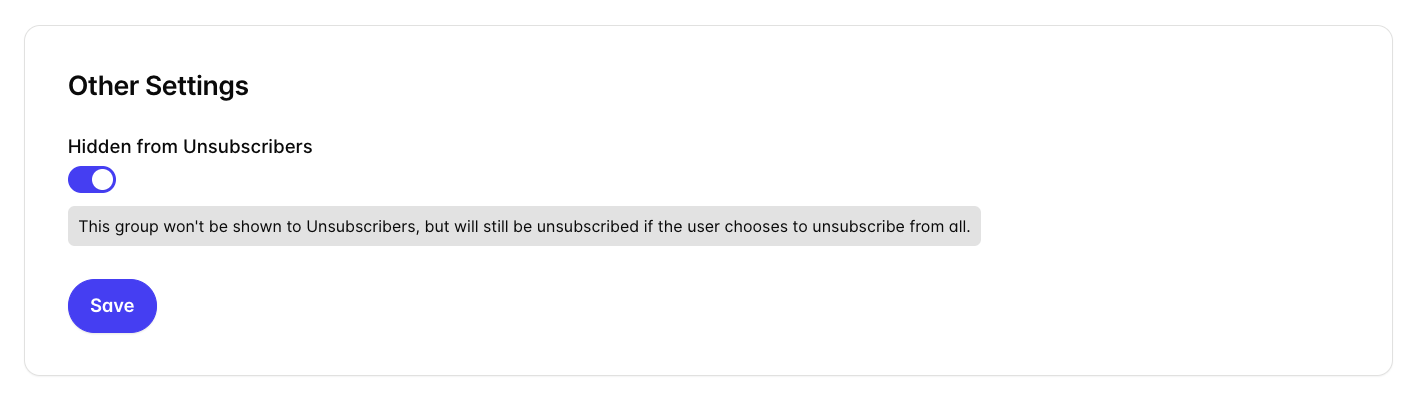
The group will no longer appear in the list of selectable options.
Contacts can still choose Unsubscribe from all, which removes them from every group.