Adding Contacts to Transpond
Keeping your contacts up to date is key to sending the right messages to the right people. Transpond gives you a few simple ways to add contacts, whether you’re adding one person or importing a full list.
This helps you get started quickly, stay organized, and avoid manual errors as your audience grows.
Who can use this feature? Anyone
Available on: Free, Starter, Growth, Advanced and Ultimate
Add a Single Contact
Use this option when you want to quickly add one person.
To add a contact manually:
- Go to Contacts
- Click Add Contact
- Choose which Group to add them to
- Click Add a single contact
- Enter the contact’s details (such as name and email address)
- Click Save
The contact will now be available for your campaigns and segments.
Add Multiple Contacts
If you have more than one contact to add, there are faster ways to do it.
Import contacts from a file
Use this when you have a list saved on your computer (for example, a CSV file).
- Go to Contacts
- Click Add Contacts
- Choose which Group(s) to add the contacts to
- Click Start Importing under From a Spreadsheet.
- Upload your file
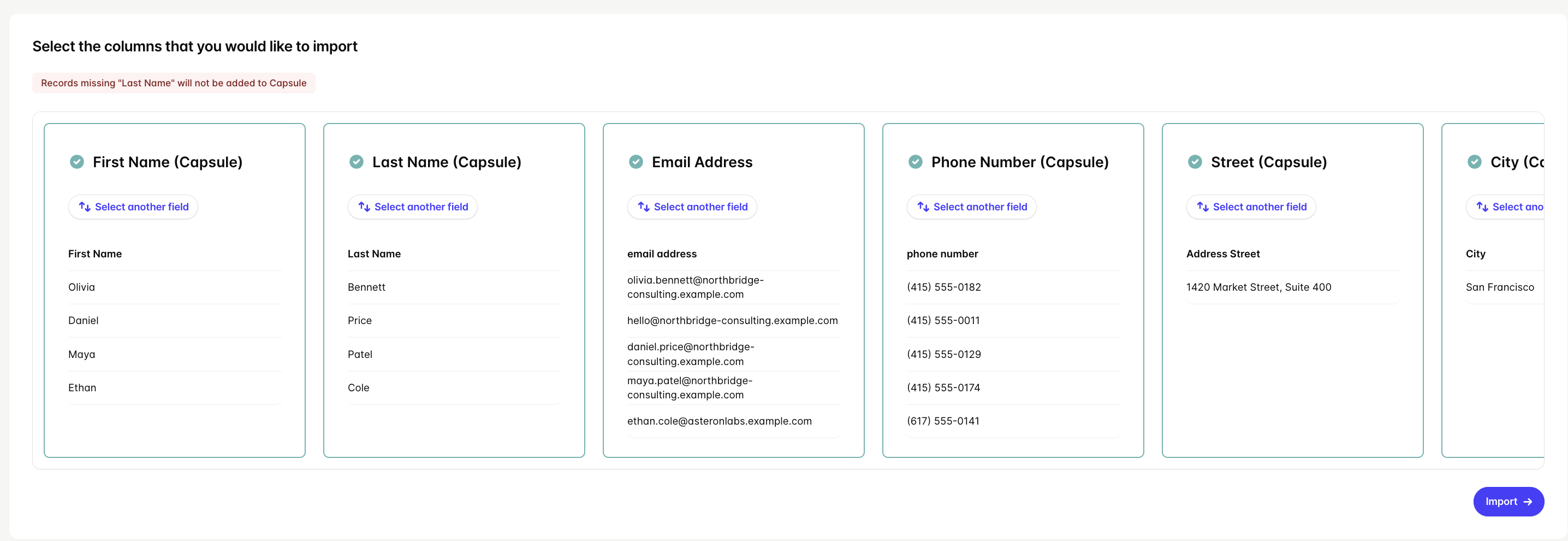
- Match your fields (e.g. email, name)
- Start the import
This is the quickest way to add a large number of contacts at once while keeping your data organized.
Copy and paste contacts
This allows you to copy any body of text and any email addresses will be detected and added to your chosen Group.
- Go to Contacts
- Click Add Contacts.
- Select the Group you wish to add the Contact to or create a new one.
- Click Start Pasting under From copy & paste.
- Paste your text and then select how you would like to handle email addresses found in other Groups.
This is useful when you don’t have a file ready but still want to add several contacts quickly.
Add contacts from another Group
If your contacts are already in Transpond, you can reuse them without re-importing.
- Go to Contacts
- Click Add Contacts
- Click Start Copying under From another Group.
- Select the Group you would like to copy from and then select the status of the Contacts you would like to copy.
- Click Import.
This saves time and avoids creating duplicate contacts.
Adding Contacts Automatically
You can also add contacts automatically by connecting integrations (such as your CRM or website forms).
These integrations keep your contact list up to date without manual work. For step-by-step instructions, see our separate integration guides.
Only add contacts who have given permission to receive your emails, use clear Group names to stay organized, and check your data before importing to help avoid errors.