Advanced Domain Security Guide
Protecting your domain goes beyond basic setup. This guide explains how to set up DMARC, SSL, CAA and MX records to keep your email secure, improve deliverability, and give your brand extra credibility.
Who can use this feature? Admins
Available on: Free, Starter, Growth, Advanced and Ultimate
DMARC
DMARC (Domain-based Message Authentication, Reporting, and Conformance) helps protect your email and improve delivery by telling email servers how to check that messages really come from you. It works together with SPF and DKIM to prevent spoofing and spam.
How to add a DMARC Record
- Log in to your DNS provider’s control panel.
- Go to DNS Management
- Add a new TXT Record.
- Set Host/Name to:
_dmarc.yourdomain.com - Set Value/Content to a DMARC policy such as:
v=DMARC1; p=none; rua=mailto:dmarc-reports@yourdomain.com - Save the record
- Verify the record using a DMARC lookup tool (e.g. MXToolbox).
📙 Learn How to update your DNS Settings in popular DNS providers.
SSL Records
Available on: Starter, Growth, Advanced and Ultimate
SSL (Secure Sockets Layer) is what creates a secure connection between the server and your website. Websites with SSL display a padlock icon in the browser and often use https:// instead of http:// . Having SSL builds trust and increases confidence for Contacts who click any links in your Campaigns.
Paid Transpond accounts automatically receive SSL certificates for the domains added to Transpond.
The status may show as Pending for up to one hour until the SSL certificate is issued.
CAA Records
A CAA (Certificate Authority Authorization) record restricts which certificate authorities are allowed to issue SSL certificates for your domain. Most domains do not have a CAA record. This is normal.
CAA records are an advanced security feature and are not required for most domains.
If your domain does have an existing CAA record, you must allow letsencrypt.org so Transpond can automatically issue SSL certificates for your configured domains.
MX Records
MX (Mail Exchange) records tell the internet where to deliver email for your domain, and setting them up correctly helps your email marketing run smoothly from end to end.
With proper MX records in place, your Campaigns are more likely to reach inboxes instead of spam folders. The result is fewer delivery issues, stronger engagement, and more confidence that your Campaigns are not only being sent, but actually working.
How to set up MX records in Transpond
- Go to your profile picture in the top right of Transpond > Account Settings
- Choose the My Domains tab
- To the far right of your domain, select the 3 dots icon > Setup MX Records
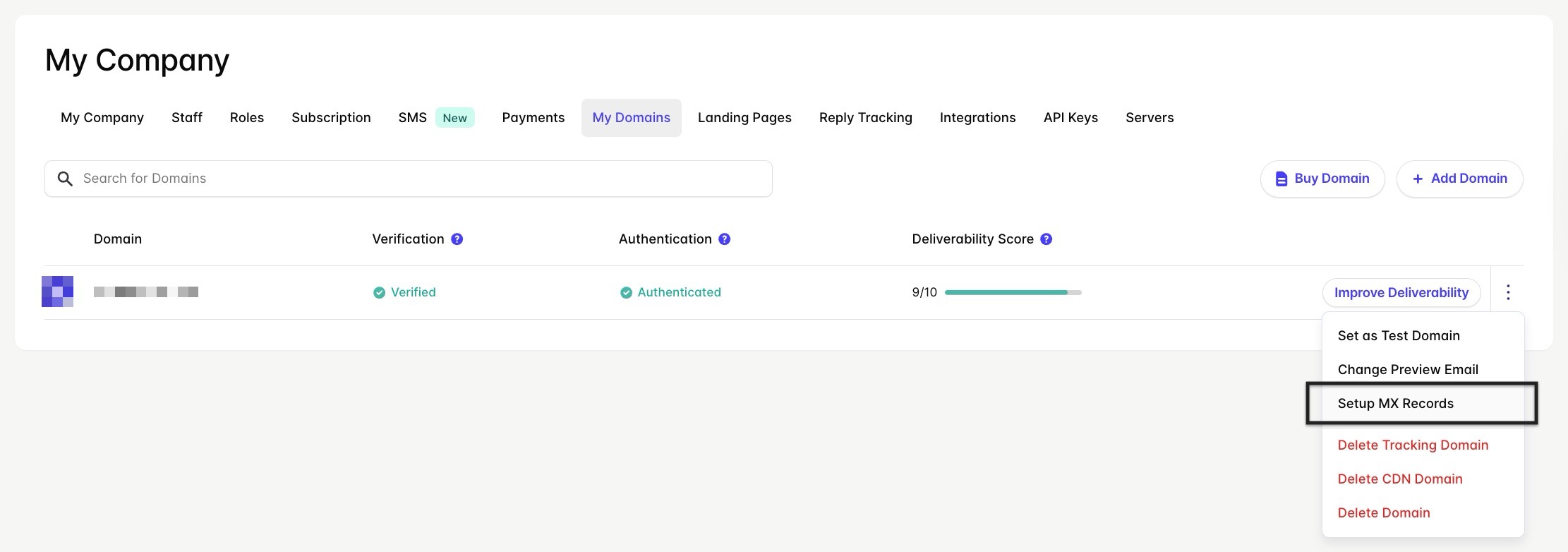
- Copy the MX, CNAME and TXT values provided
- Log in to your DNS provider’s account and find your domain’s DNS settings
- Add those records to your domain’s DNS settings and wait up to 48 hours for the changes to update.
📙 Learn how to update your DNS Settings in popular DNS providers.