Managing Company Information
Your company settings store the key details used across your Transpond account. Keeping this information up to date helps ensure your emails look consistent and include the correct contact and branding details.
Who can use this feature? Admins
Available on: Free, Starter, Growth, Advanced and Ultimate
Accessing company settings
To view or update your company information:
- Click your Company Name in the top right corner
- Select Account Settings
- Open the Company tab
Updating company details
You can update the core information associated with your account, including:
- Company address
- VAT number
- Industry
- Contact details
- Social media links
These details can be used in your email templates, helping you keep your content accurate and consistent without needing to re-enter information each time.
Setting default brand colours
You can define default colours for your account. These are automatically applied when creating email templates.
Setting these once helps:
- Keep your emails visually consistent
- Save time when designing new templates
The Brand Analyzer
The Brand Analyzer helps you quickly apply your branding to email templates.
It scans your website and pulls in key elements such as:
- Your logo
- Colour scheme
- Contact details
- Social media links
It then creates ready-to-use themes that match your brand, making it easier to design professional emails without starting from scratch.
How to use the Brand Analyzer
You can access the Brand Analyzer in two ways:
- When choosing a template
- From Account Settings
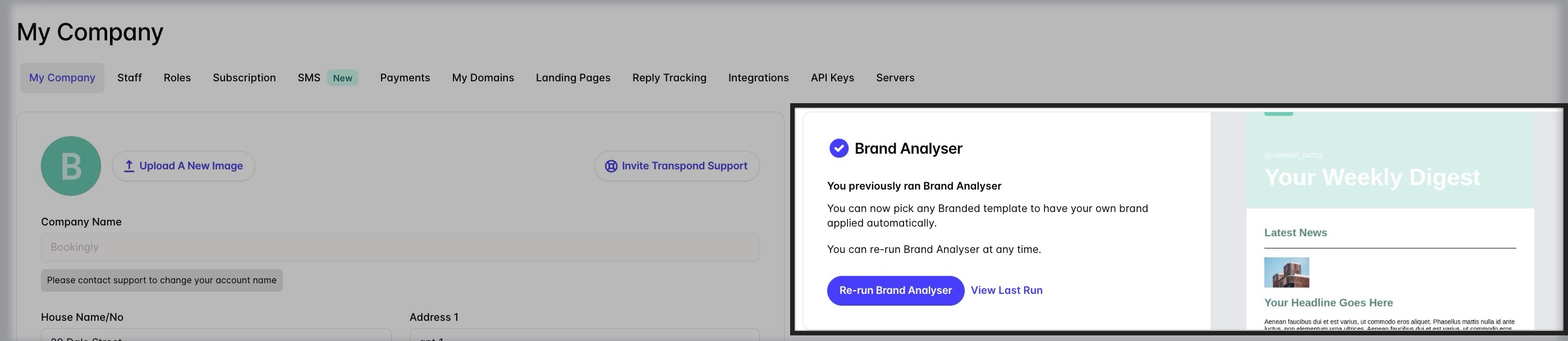
To run or re-run the Brand Analyzer:
- Go to Account Settings
- Open the Company tab
- Click Re-run Brand Analyzer
You can re-run the tool at any time if your branding or company details change.