Social Campaigns
Managing your social media presence alongside your email marketing in the same platform means your campaigns stay coordinated and your messaging stays consistent. Transpond lets you create and publish posts to your social media accounts directly, so you don't need to jump between tools to keep your audience engaged across channels.
Who can use this feature? Anyone
Available on: Free, Starter, Growth, Advanced and Ultimate
Why use Transpond for social campaigns?
Keep everything in one place
When your email and social campaigns live in the same platform, it's much easier to plan coordinated campaigns. You can make sure your social posts and email sends are aligned around the same message, promotion, or launch, without having to manually cross-reference activity across different tools.
Reach your audience where they are
Not everyone on your contact list will open every email. Social media gives you another touchpoint to reach people who might be more active on those platforms, reinforcing your message and keeping your brand visible.
Plan and schedule ahead
Rather than posting reactively, Transpond lets you plan your social content in advance and schedule it to go out at the right time. This is especially useful around busy periods like product launches or seasonal promotions, when you want to make sure your social presence keeps pace with everything else you're running.
Stay consistent with your brand
Having your social campaigns sit alongside your email templates and campaign history makes it easier to keep your tone, visuals, and messaging consistent. You can reference what you've recently sent to your email list and make sure your social content complements rather than contradicts it.
What you can post
Transpond supports posting to your connected social media accounts. You can create posts with text and images, schedule them for a specific date and time, or publish them immediately.
You can post to:
- X
Plan limits for Social Campaigns
The features available to you for social campaigns depend on your Transpond plan.
- Scheduled posts: On the free plan, you can schedule one post at a time. On all paid plans, you can schedule unlimited posts.
- Connected social channels: On the Free and Starter plans, you can connect one social channel. On all other plans, you can connect all four supported channels.
If you need to upgrade your plan, you can do so from the Account Settings > Subscription.
Read more about the Transpond plans on our signup page.
How to create a social campaign
- Click the + Create button in the top menu bar and choose Campaign.
-
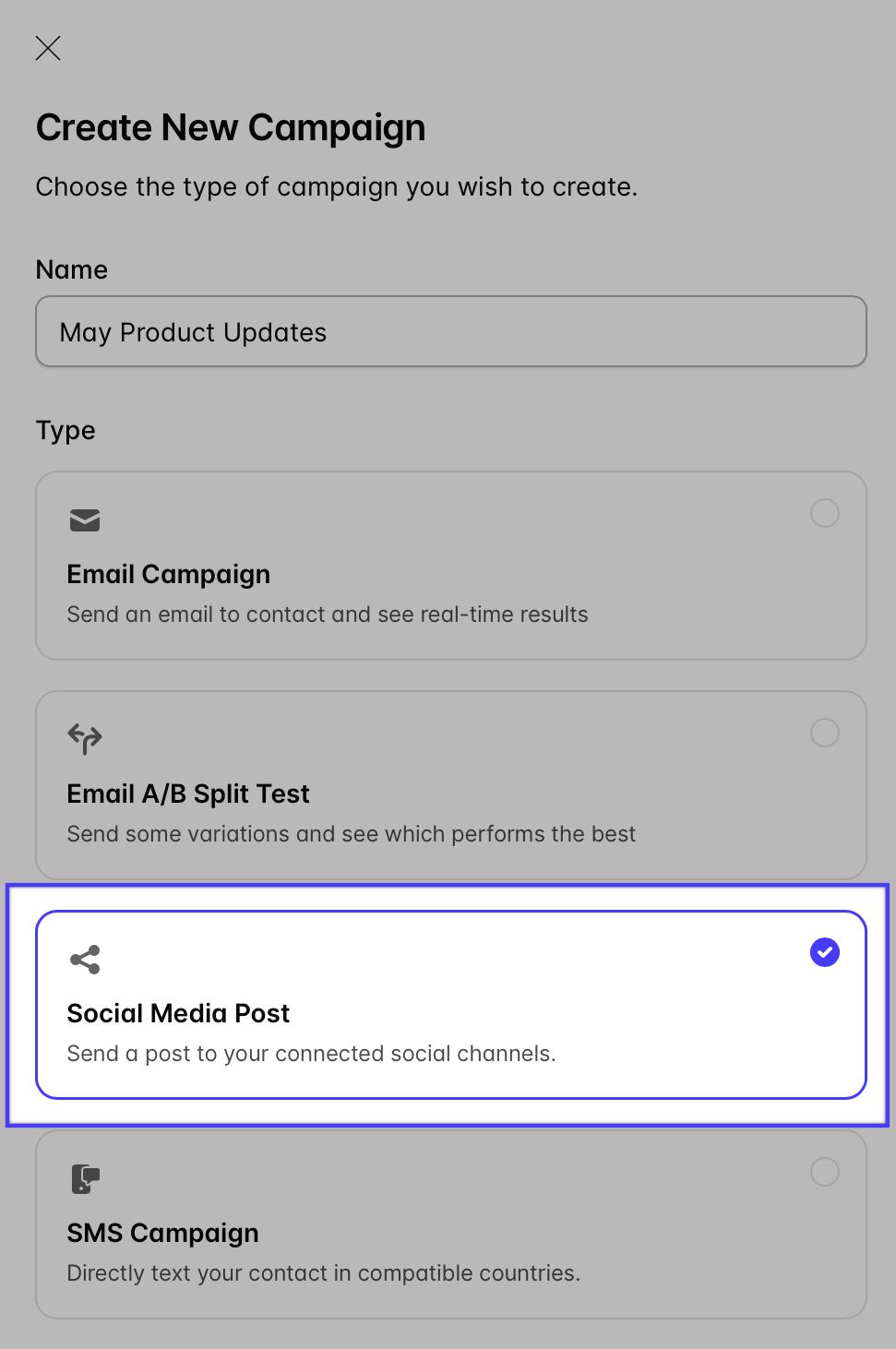
Give your campaign a name, and choose Social Media Post as the type.
-
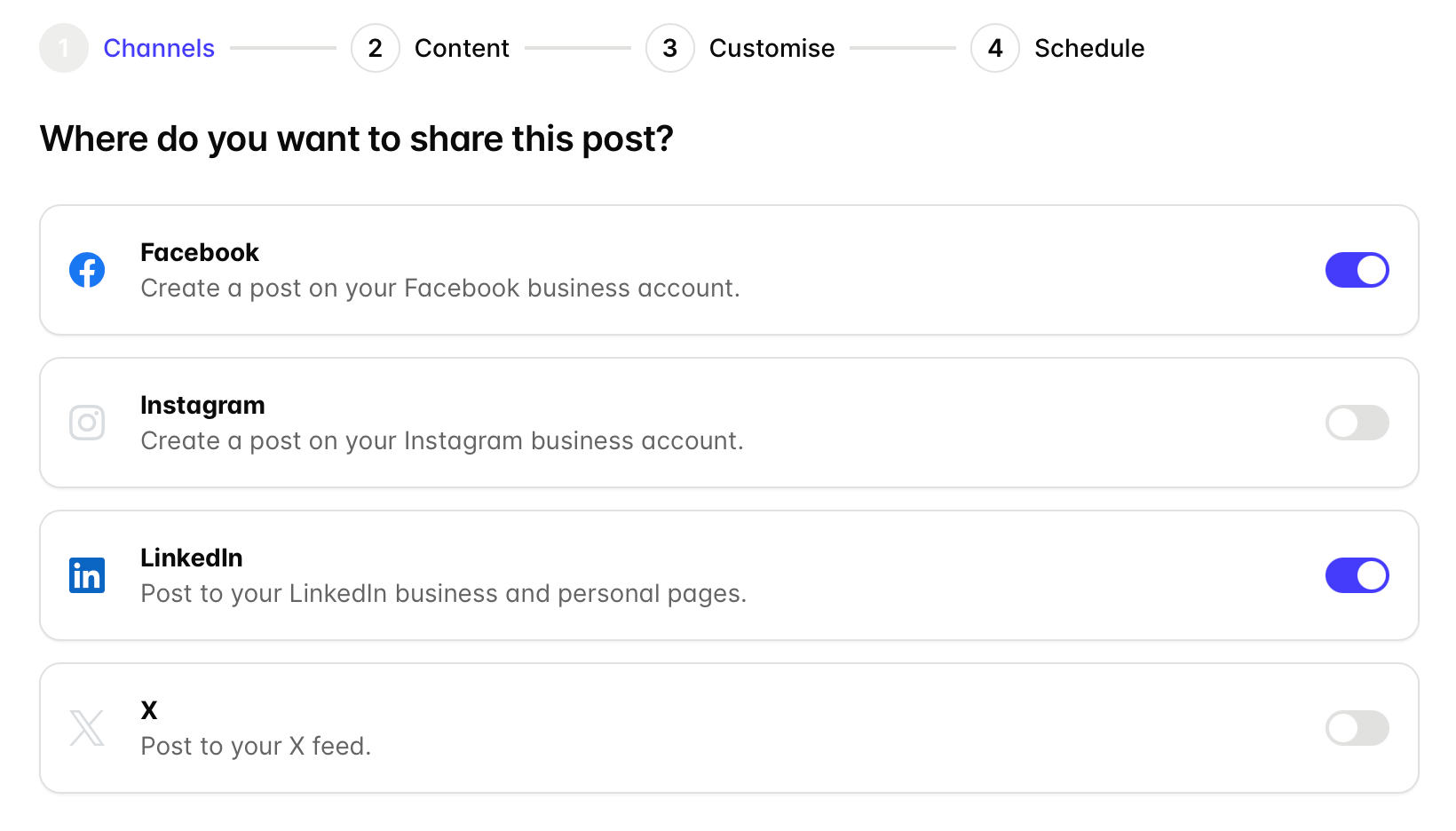
Use the toggles to select which of your connected channels you want to post the campaign to and then click Next Step.
- Add the content for your campaign. Enter the text you want to share including any links, images or video if you're using one. You can tweak the content for each channel in the next step.
- If X is one of the social networks you're posting to and you're using images, you'll be limited to 4 images. You can add more images (up to 20) to the other networks in the customization steps which comes next.
-
Customize and tweak your content for each social channel. This is when you can add more images if you've been limited to 4 in the previous step.
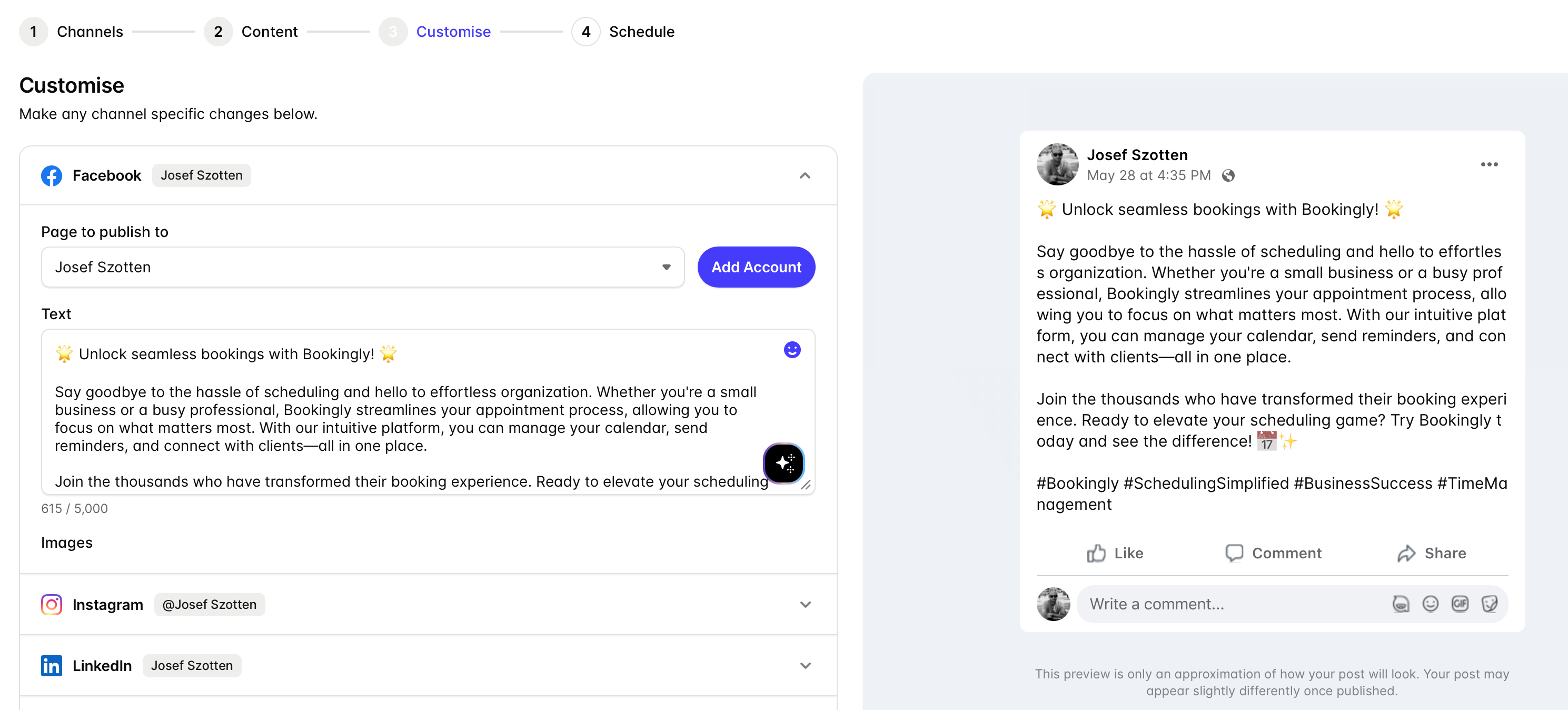
If you manage multiple Pages/Accounts you can select which Page to post to and see a preview of how the campaign will look for each channel.
Use the Transpond AI Content Assistant to optimize your content for each social channel. The Transpond AI Content Assistant will add relevant emojis and hashtags.
Using Images in Social Posts
When using images in social posts, there are a few things to consider, due to how the different social networks limit and handle images differently.
Because 'X' is limited to 4 images per post, when you set up a social campaign that includes 'X', you will at first be limited to 4 images. If you then want to add more images for the social networks that support a higher limit (20), you would do that in the individual customization step instead.
Using Videos in Social Posts
When uploading a video to a social post, there are a few important things to note:
- When a video is uploaded, you can select a thumbnail to use for the post, either a set of preselected ones, based on a timestamp, or a custom image.
- Thumbnails are only available on Facebook and LinkedIn posts.
- When using video you can only customize the text in the post, rather than the video per platform, in the next step.
- Social campaigns using videos can't be duplicated.
Channel Content Requirements
Each social media channel has slightly different requirements for the content that you post. The optimal image size for each channel is advised but not essential. You can resize and edit your images per channel in the Customise step of the Social Campaign wizard by clicking on the "Edit wand" in the top left corner of the thumbnail for your image.
| Channel | Character Limit | Images | Videos |
|---|---|---|---|
| 5,000 |
Required: No Image limit: 20 Size limit: 10MB/image Optimal Size: 940 x 788 |
Max file size: 200mb Max duration: 90s |
|
| 2,200 |
Required: Yes Image limit: 20 Size limit: 8MB/image Optimal Size: 1080 x 1080 |
Max file size: 200mb Max duration: 90s |
|
| 3,000 |
Required: No Image limit: 20 Size limit: 5MB/image Optimal Size: 1200 x 627 |
Max file size: 200mb Max duration: 90s |
|
| X (formally Twitter) | 280 |
Required: No Image limit: 4 Size limit: 5MB/image Optimal Size: 1024 x 512 |
Max file size: 200mb Max duration: 90s |
Tips for getting the most out of social campaigns
Match your timing to your email sends. If you're running a promotional email campaign, schedule your social posts to go out around the same time to maximize reach and reinforce the message.
Keep your copy platform-appropriate. What works in an email doesn't always translate directly to a social post. Keep social copy shorter, more conversational, and tailored to the platform you're posting to. [Transpond's AI Content assistant] TODO helps you with this. It lets you automatically customize the content based on the platform that it's for.
Use social to drive people to your list. Social campaigns are a great opportunity to grow your email audience. Consider including a call to action that points followers toward a sign-up page or a lead magnet.
Review your campaign calendar. Before scheduling a social post, check your campaign calendar to make sure it fits with everything else you have planned and nothing is going out at the wrong moment.