SMS Campaigns (UK Only)
SMS campaigns give you a fast, direct way to reach your audience. Unlike email, text messages are typically seen within minutes, making them ideal for time-sensitive updates, reminders, and short, actionable messages. Use SMS when you want to cut through inbox noise, prompt immediate action, or reinforce important communications alongside your email campaigns.
Who can use this feature? Anyone in the UK
Available on: With an SMS Add-On, on Free, Starter, Growth, Advanced and Ultimate
Before You Start
To send SMS campaigns, you’ll need an active SMS credit bundle. SMS bundles work on a monthly credit system:
- You purchase a set number of SMS credits each billing cycle
- Credits reset each cycle and don’t roll over
- If you exceed your limit, your bundle is automatically upgraded so messages continue sending without interruption
Once your bundle is active, you can create and send SMS campaigns right away.
How to Send an SMS Campaign
- Click the + Create button in the top menu bar > Campaign.
-
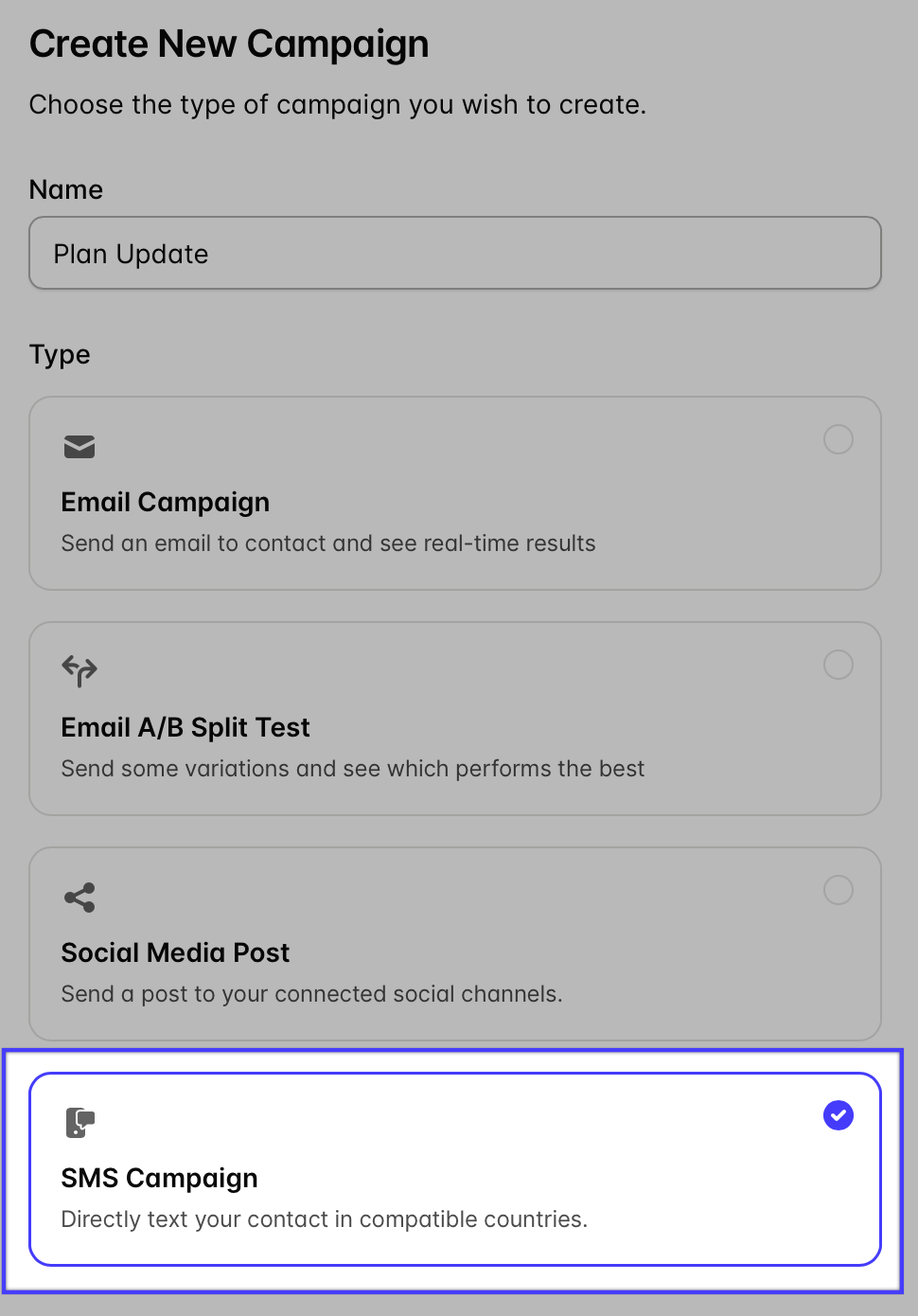
Give the campaign, and choose SMS Campaign from the list of options.
- Select the Group and/or Segment you want to send your SMS campaign to.
-
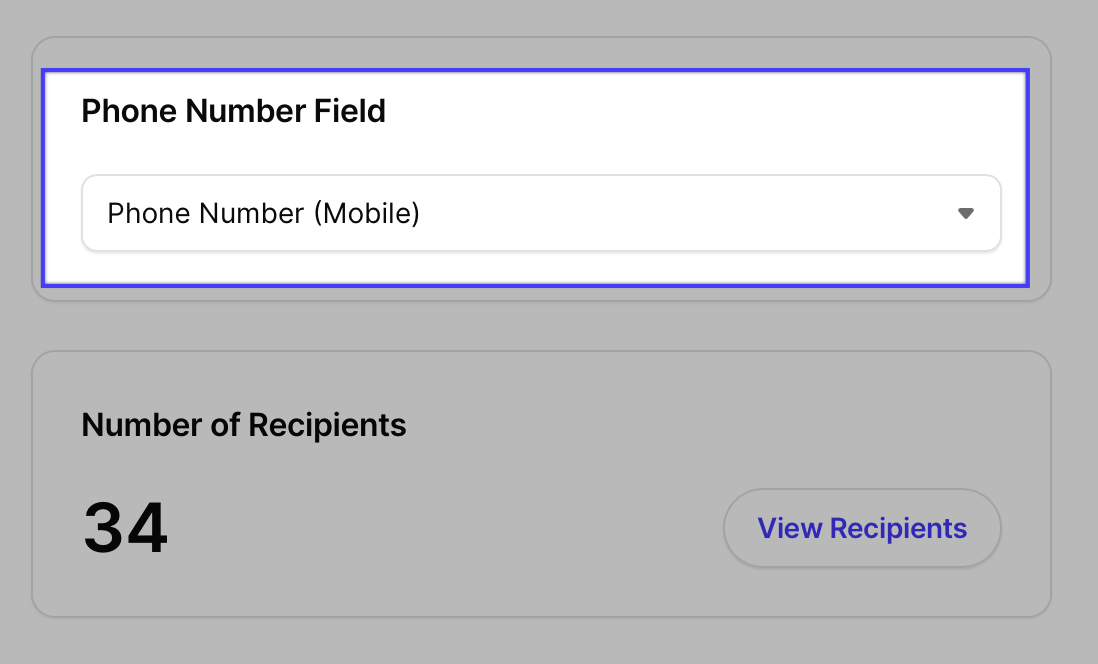
At this point you can also choose to override the default phone number field if needed.
-
Next, choose a From Name and then write your message.
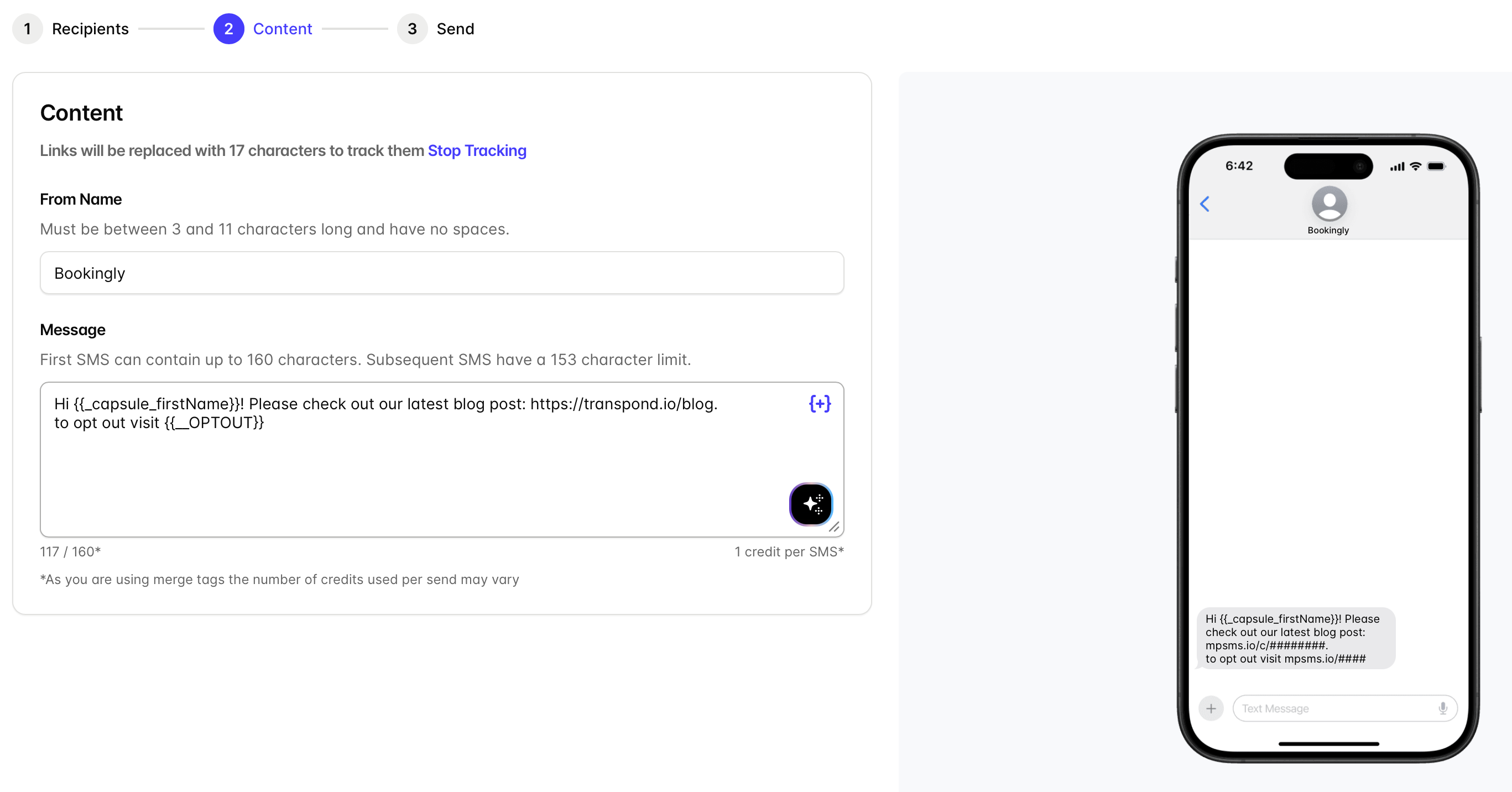
- You'll notice from the SMS composer that you need to include the {{__OPTOUT}} merge tag to ensure your contacts can opt out of SMS.
- As you type your message, you'll see the character counter tick down. You can write a message that exceeds a single SMS length, and the campaign will just send multiple messages. Your credits will be used up accordingly.
That’s it. Your message will be delivered directly to your contacts’ mobile devices.
Note that if you're using merge tags in your SMS then the character count - and therefore the credit use - for the message could change depending on the value in the field for each recipient.
Writing Effective SMS Messages
SMS works best when messages are clear and concise. You can use our AI Content Assistant to help compose the message.
Keep in mind:
- Short messages are easier to read and more likely to get a response
- Longer messages may be split into multiple parts, which can increase credit usage
- Simple, direct calls to action (e.g. “Book now”, “Reply YES”) tend to perform best
Managing SMS Settings
You can control how SMS works for your account in your settings:
- Set a default sender name
- Choose which contact field to use phone numbers from
- Manage or change your SMS bundle at any time
To update these:
- Go to your Account Settings
- From the SMS tab you can manage your SMS settings.
- From the Subscription tab you can manage your SMS bundle
When to Use SMS vs Email
Use SMS when:
- Timing matters (reminders, alerts, last-minute updates)
- You need a quick response
- You want to reinforce an important message
Use email when:
- You need more space for detail or design
- You’re sharing rich content like images or longer updates
Using both together can improve overall engagement and help ensure your message gets seen.
📙 Click here to read more on sending email campaigns.
How to use SMS Sending in an Automation
Using Automations to send SMS messages is a great way to complement your workflow to ensure your communications reaches your contacts without delay.
To add an SMS step in an Automation:
- Once you've set up your Automation trigger and you're ready to insert your SMS Action, click the + where you want to add it > click the SMS option.
- Choose the phone number you want to send the SMS from, and fill in the from name and message.
-
Before saving, you can choose how you want this step to behave if the contact in the Automation doesn't have a valid phone number for the field you've selected. They can either remain on that step and not continue through the Automation, or they can skip it and move on to the next step.

- Save the changes.
- Make sure you click the button to Start Automation when you're ready, and you're all done.

Accepted phone number formats for SMS use
In order for Transpond to reliably send to SMS messages to your contacts, it's important that you format the phone numbers for them correctly.
Acceptable formats for UK numbers are:
- +447123456789
- +44 7123 456789
- +44(0)7123456789
- 00447123456789
- 07123456789
Further reading
For more details on how to configure your SMS settings and SMS compliance, click through to our dedicated articles: