Stripe Integration
Connect Transpond with Stripe to bring your customer and payment data into one place, so you can follow up with the right people at the right time.
Once the integration is set up, you can use Stripe activity in Transpond to create more relevant marketing, reduce manual data entry, and keep your contact records up to date. This helps you save time, avoid missed opportunities, and communicate with customers based on what they buy, subscribe to, or pay for.
Who can use this feature? An Admin role is required to set up the integration
Available on: Free, Starter, Growth, Advanced and Ultimate
Connecting Stripe to Transpond
Once your Stripe account is connected, any new contacts in Stripe will be synced to Transpond. To set up the integration:
- In Transpond, click your company name in the top-right corner > Integrations > click Add Integrations > click View/Install under Stripe.
- Click Connect to Stripe.
- Enter the credentials for your Stripe account and then click Connect
- Click Return to MPZMail Agency
- To complete the setup, select the existing Transpond Group (or create a new Group) that your Stripe account should sync with.
Managing the Stripe Integration
You can change the Transpond Group your Stripe account syncs with by:
- Clicking on your company name in the top-right corner > Integrations
- Click Manage
- Here you can change which Transpond Group your Stripe contacts sync to.
Changing the Transpond Group will only apply to new contacts brought over from Stripe after the change. Existing Stripe contacts will not be automatically moved to the new Group.
Using the Stripe Integration
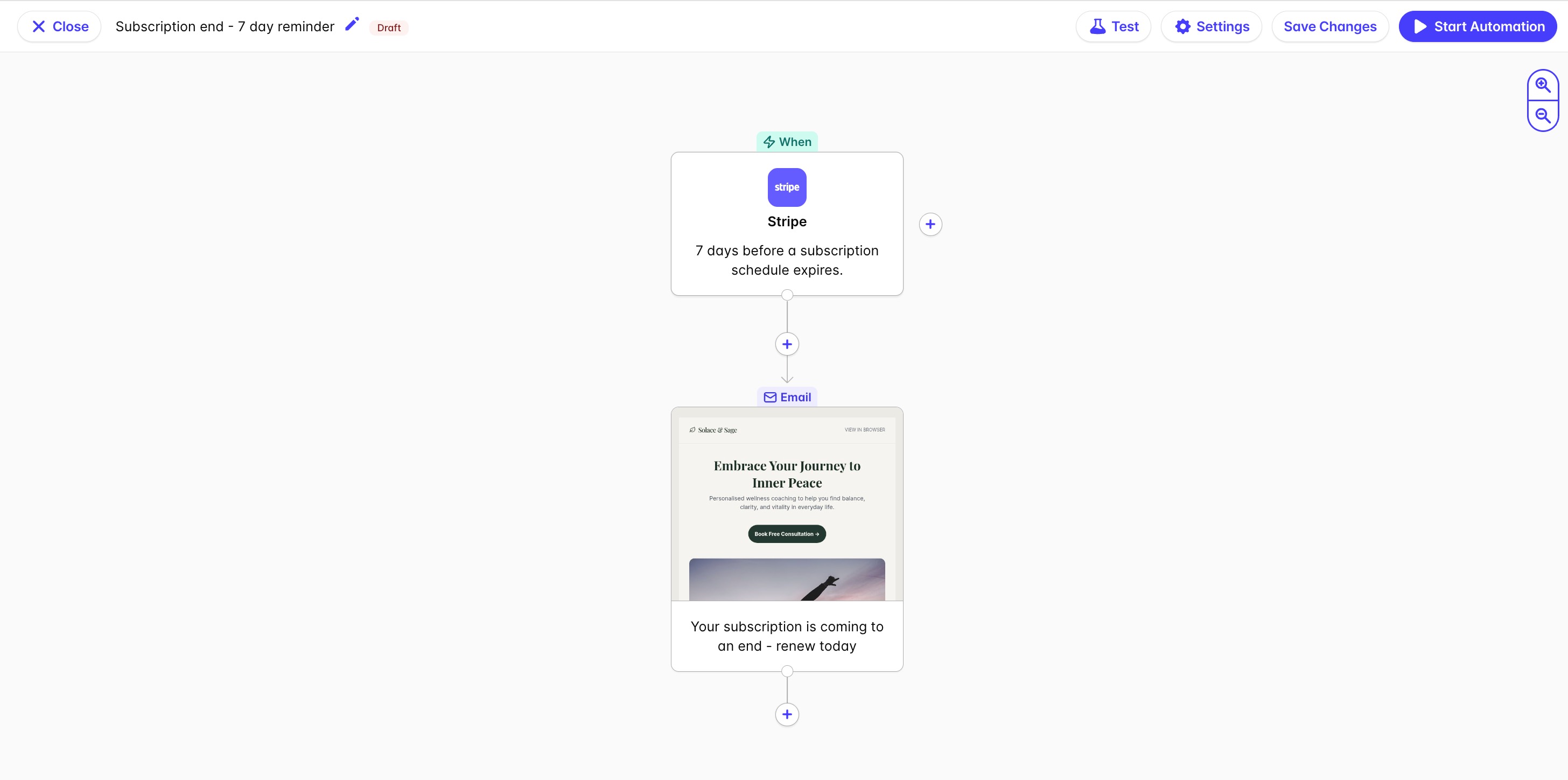
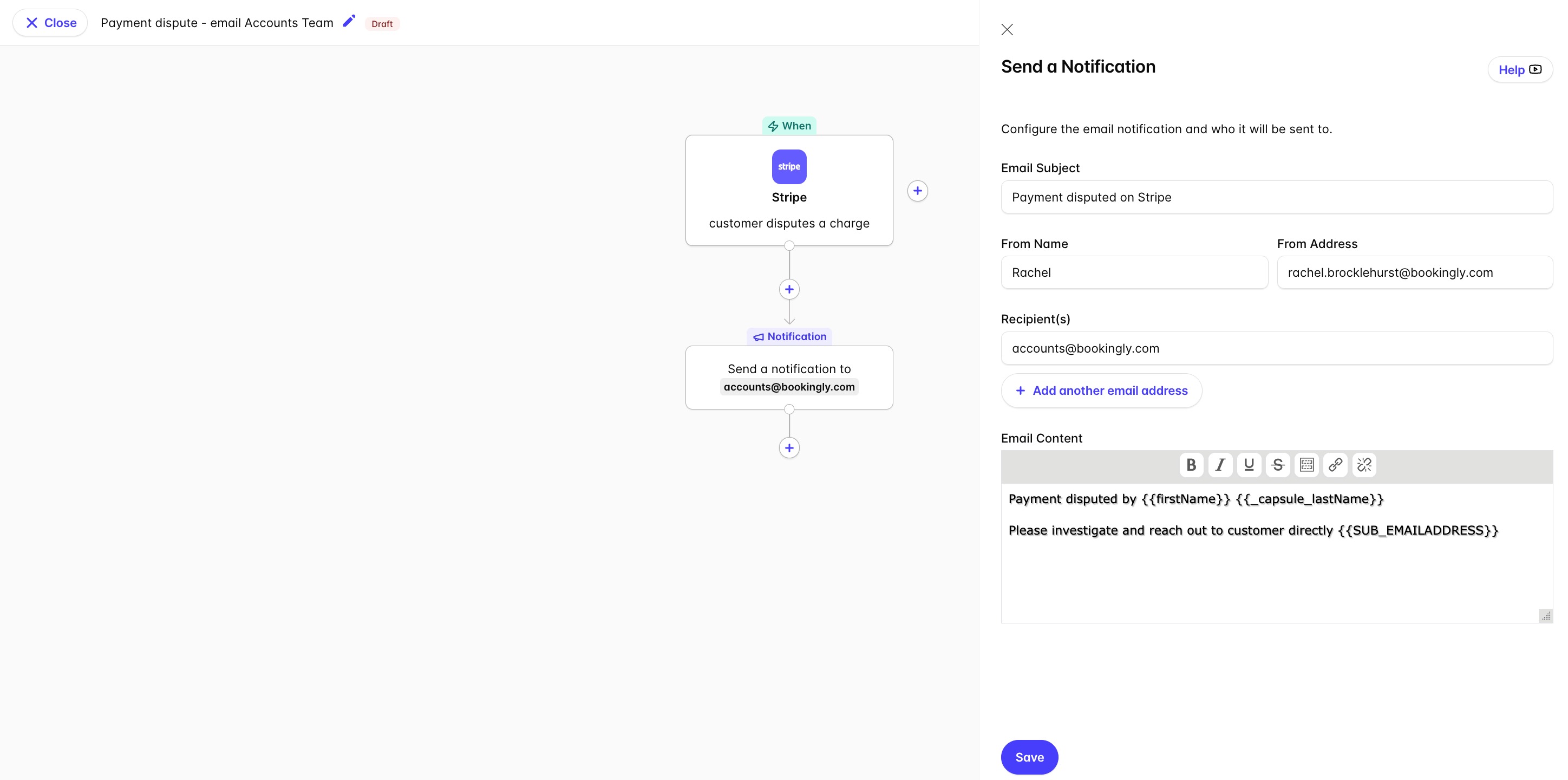
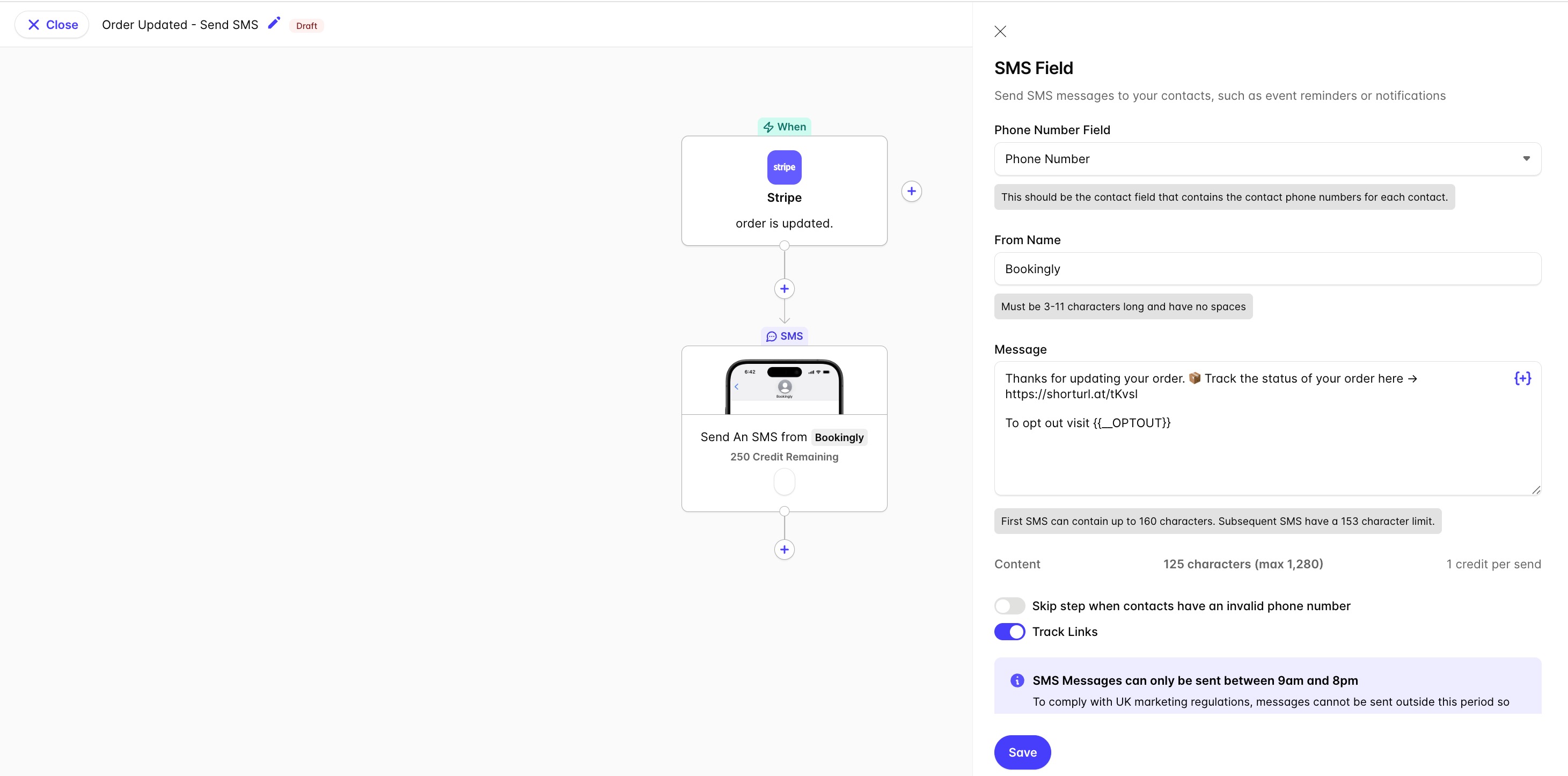
With your Stripe account connected to Transpond, you can include your Stripe contacts in your marketing communications and within Transpond Automations. Here are some examples of the Automations you can set up when using Stripe and Transpond together;
- Send email or SMS communications 7 days before a Stripe subscription ends.
- Send an internal notification when a customer disputes a charge.
- Send an SMS confirmation when an order is updated.
Disconnecting the Stripe Integration
To disconnect the Stripe integration:
- Click on the Account menu > Integrations > click Manage next to Stripe
- Click Disconnect and then confirm.
When you disconnect a Stripe account, the existing contact data will remain in Transpond, and no further contact sync will take place.