Create Capsule Opportunities from Transpond Form Submissions
Automatically creating Capsule Opportunities from Transpond form submissions helps your team follow up faster, stay organised, and avoid missing potential deals. By combining Transpond Automations with Capsule, you can turn engaged leads into Opportunities without any manual admin.
This setup is especially useful for lead capture forms, demo requests, consultations, or other high-intent enquiries where quick follow-up matters.
What this Automation does:
- A contact submits a Transpond form
- A follow up email is sent automatically
- Transpond waits to see if they engage with the email
- If the email is opened, a Sales Opportunity is created in Capsule automatically
This helps your sales team focus on engaged leads while reducing repetitive manual work.
Creating the Automation
- In Transpond, click Automation
- Click Create New Automation
- Select From Scratch
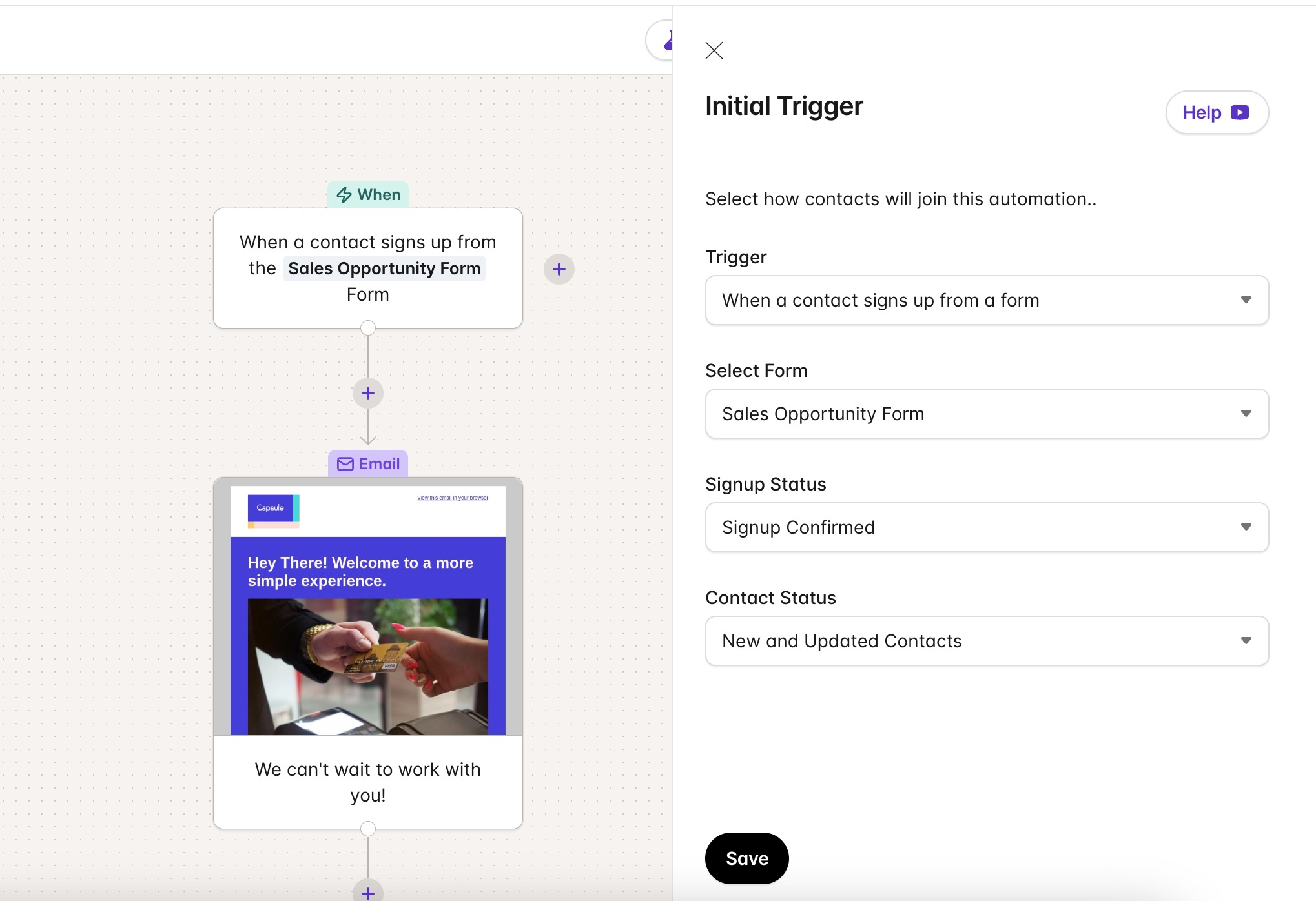
- Choose the trigger: "When a contact signs up from a form"
- You’ll then need to select:
- The form you want to use
- The signup status (we recommend selecting Signup Confirmed so you only automate follow-up for contacts who have confirmed they want to hear from you)
- The contact status
- You’ll then need to select:
- Click the + icon > add a Delay step. You can add a delay of anything from 1 hour to 2 days. Adding a short delay creates a more natural experience and avoids sending emails immediately after form submission.
- Click the + icon > choose Send Email > you will now be able to:
- Set the subject line
- Choose the sender email address
- Create the email content. You can personalise the email using merge tags, such as the contact’s first name, to make your communication feel more relevant and engaging.
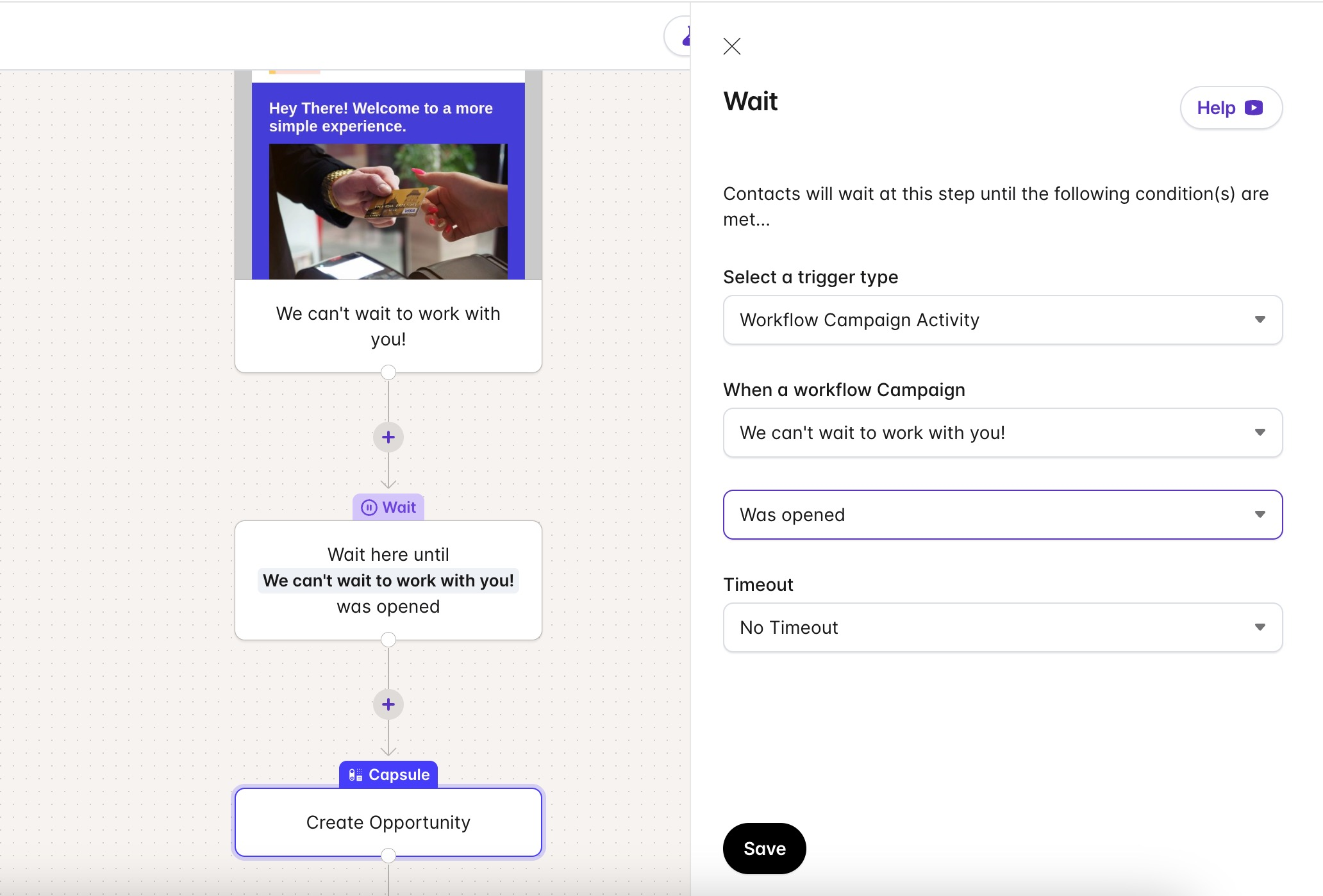
- Click Add Wait. Contacts will 'Wait' in the Automation here until they open the campaign. This helps qualify engaged contacts before creating a Sales Opportunity in Capsule.
- Choose Workflow Campaign Activity
- Select the email you created in the previous step
- Set the condition to: Was opened
- Leave the timeout empty if you want the Automation to wait indefinitely.
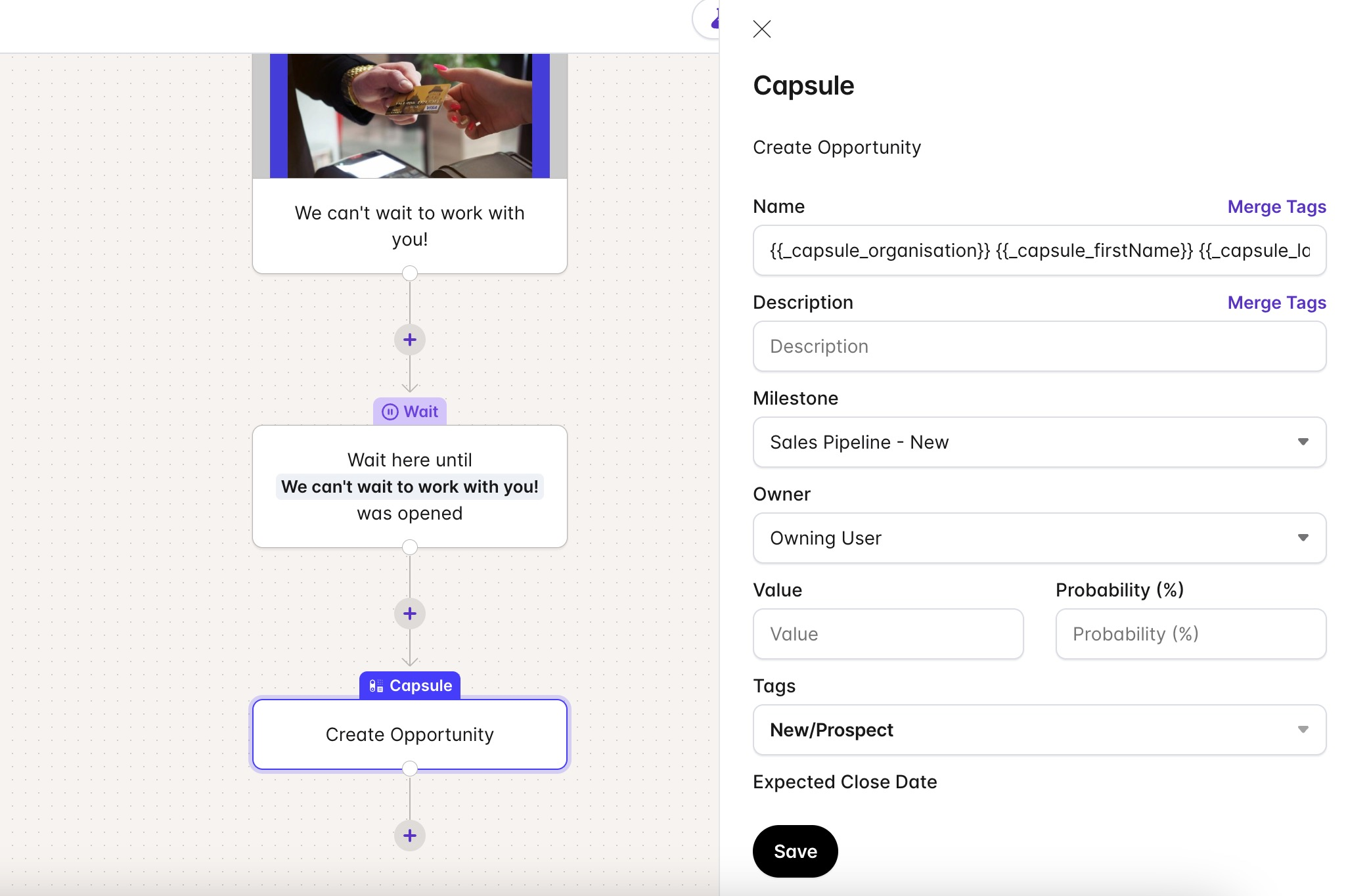
- Click Add Action > select Create Opportunity. You can use merge tags to personalise Opportunity details automatically and you can configure:
- Opportunity name
- Value
- Milestone
- Tags
- Tracks
Optional Step:
If your contacts are likely to make multiple form submissions over time, you should add a Goal Step at the end of the Automation and set this to allow contacts to rejoin the Automation.
- Click Start Automation