Hover Domain Authentication

Each DNS provider has slightly different steps in order to add or edit DNS records. Below is a list of steps you need to use to set up DNS records with Hover.
Who can use this feature? All Staff
Available on: Free, Starter, Growth, Advanced and Ultimate
What details do I need?
Below is a list of the types of records you need to create or edit.
| Type | HOSTNAME | TARGETNAME / Content |
| CNAME | mp1._domainkey | dkim.ourmailsender.com |
| TXT | @ | v=spf1 include:spf.ourmailsender.com ?all |
| CNAME | mptrack.yourdomain.com | api.transpond.io |
| CNAME | mpcdn.yourdomain.com | cdn1.ourmailsender.com |
| TXT | _dmarc | v=DMARC1; p=... |
Make sure to replace yourdomain.com with your own domain.
How to view your DNS records in Hover
- Login to your Hover domain control panel.
- Click on DNS at the top of the page with your domain info
How to add a new record in Hover
Choose the ADD A RECORD button to create a new record.
If you have an existing SPF record then make sure to edit it, and include just the include:spf.ourmailsender.com part of it in the Value/Target.

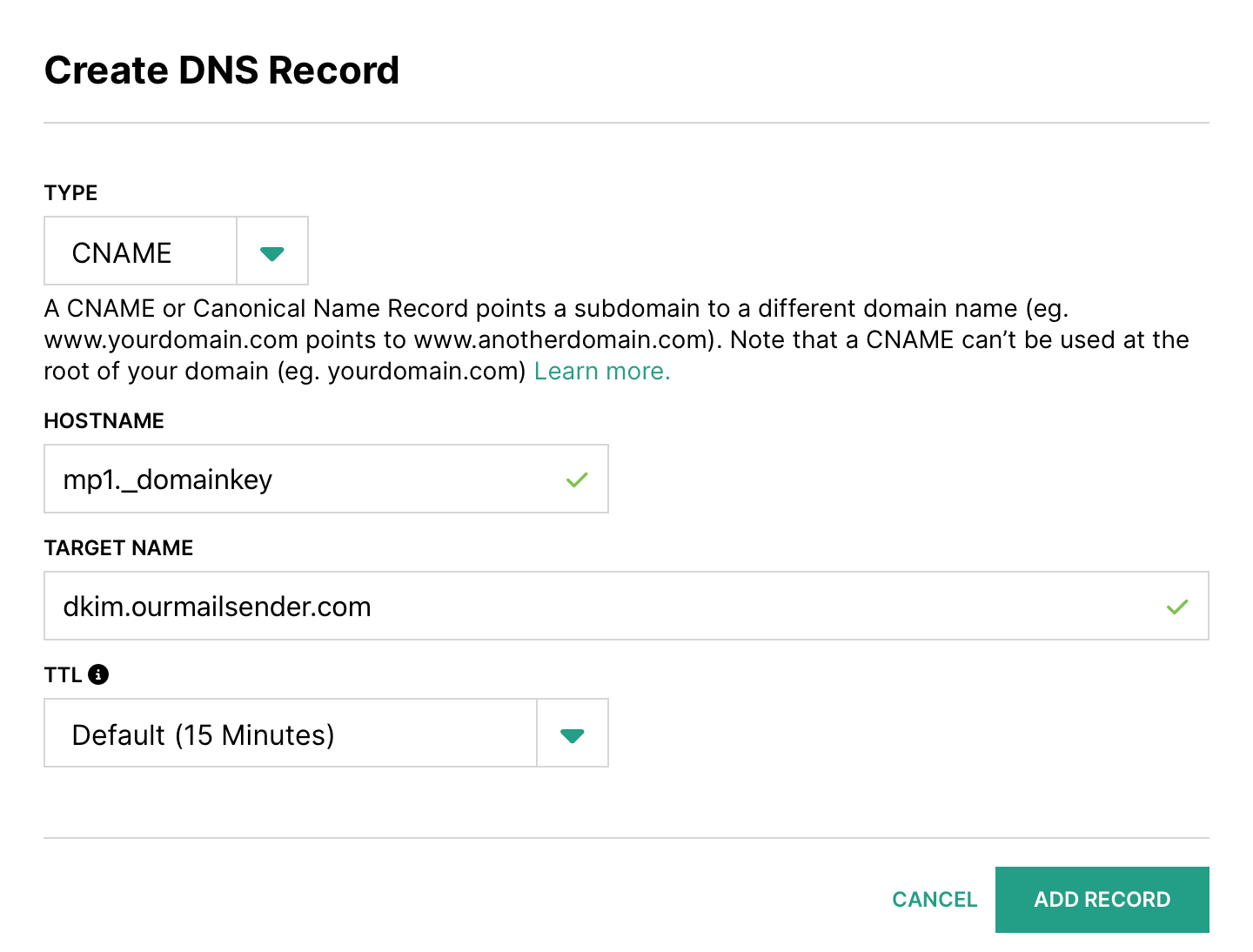
How to setup a DKIM record in Hover
- Select CNAME Record record from the 'Type' drop down.
- In the HOSTNAME field, enter
mp1._domainkey - In the TARGET NAME field, enter
dkim.ourmailsender.com - Click ADD RECORD to save your changes.
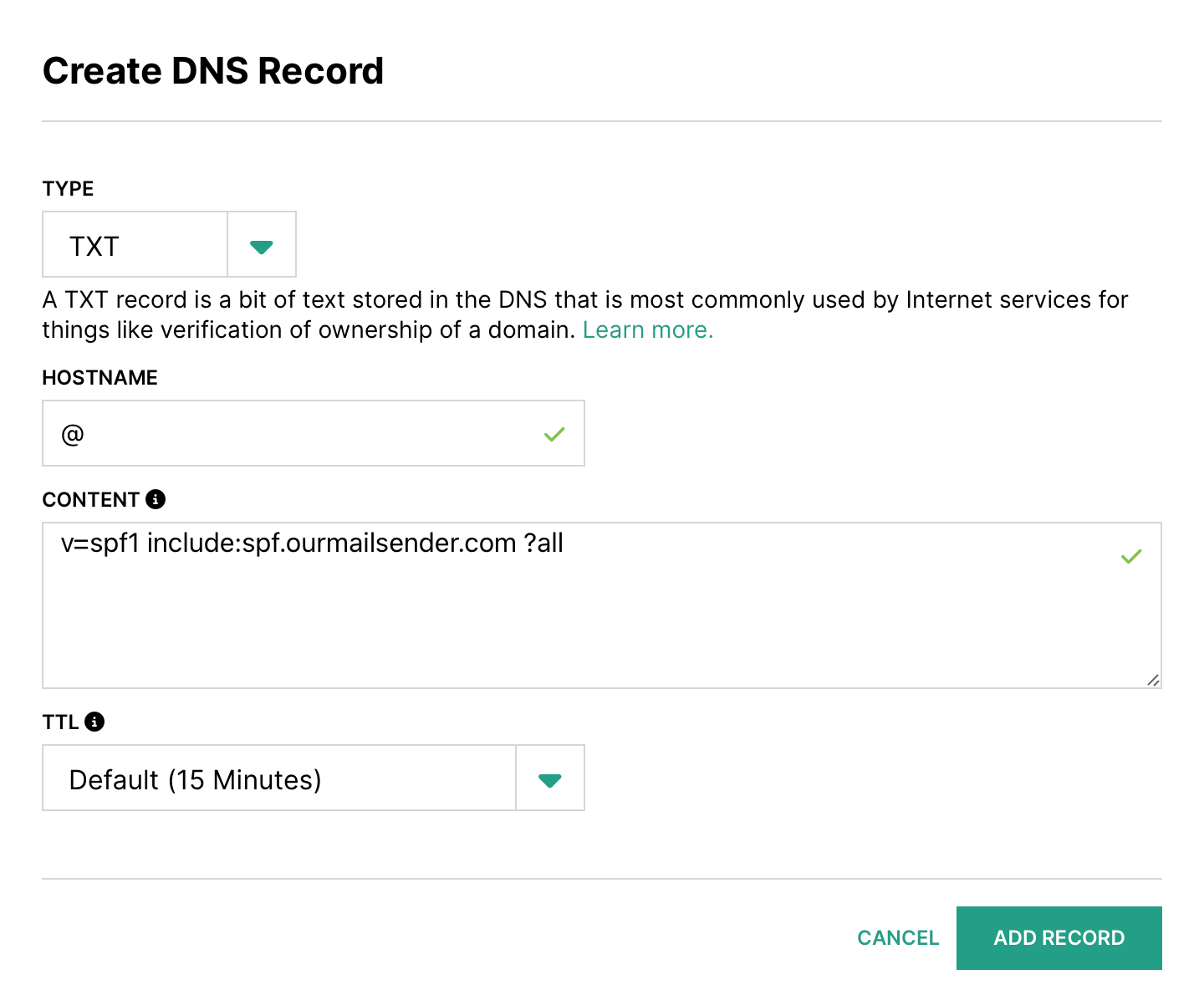
How to setup an SPF record in Hover
- First look to see if you have an existing SPF record or not. It will be a TXT record that starts with
v=spf1. If you do, click to edit the Value for the existing one and move on to step 5. - If you don't have an existing one, click to Add new record
- Select TXT Record from the 'Type' drop down
- In the HOSTNAME field, enter
@ - In the 'Content' field,
- if creating as new SPF record, enter
v=spf1 include:spf.ourmailsender.com ?all - If editing an existing SPF record, just add
include:spf.ourmailsender.comat the end, before the part that says?all
- if creating as new SPF record, enter
- Click ADD RECORD to save the changes.
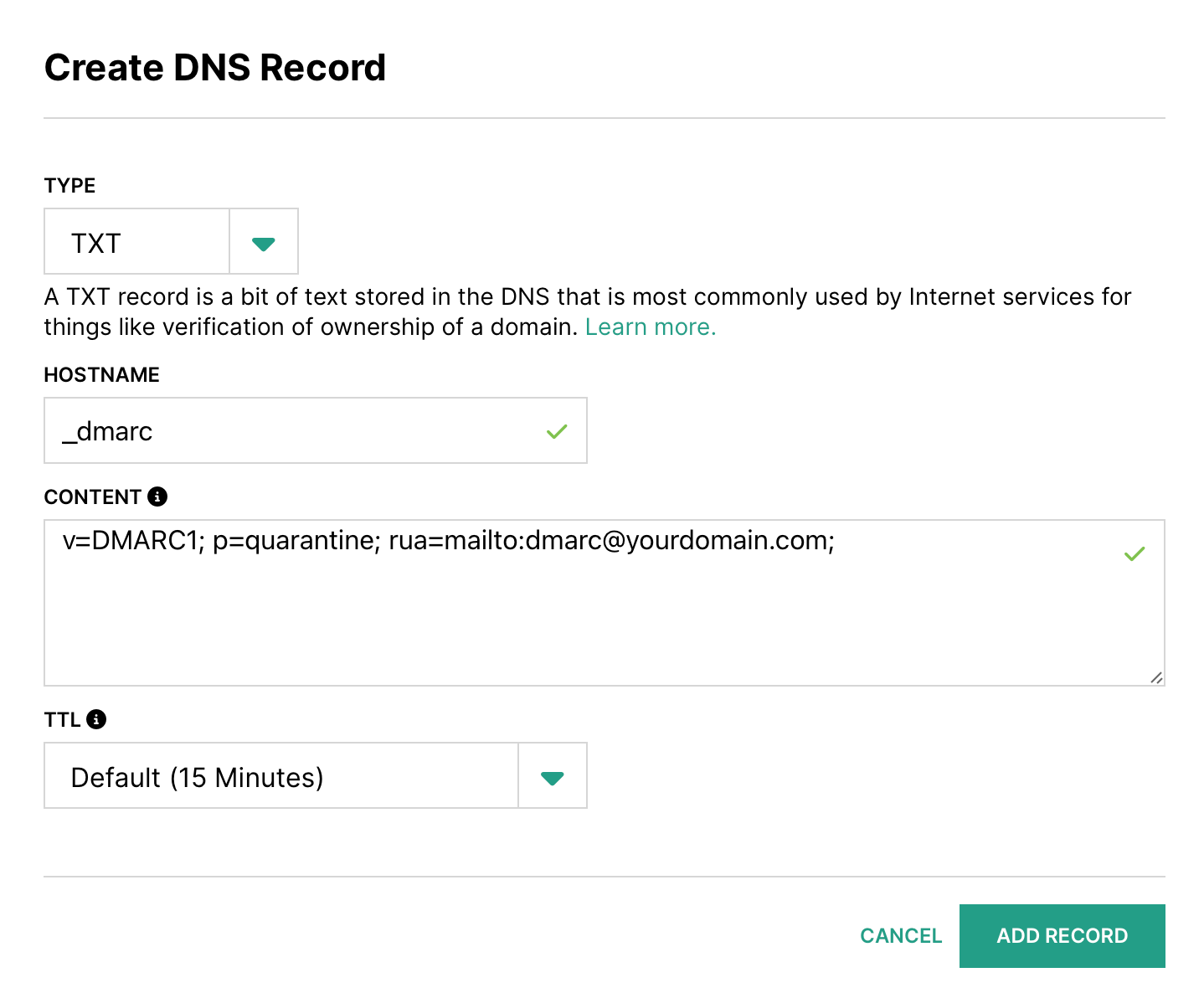
How to setup a DMARC record in Hover
- Select TXT Record from the 'Type' drop down
- Enter
_dmarcin the HOSTNAME field - Add your DMARC record in the 'Content' field. It normally starts with
v=DMARC1; p=.... If you haven't yet generated a DMARC record then you can use one of the free tools online to set one up, such as DMARC Generator: https://dmarcgenerator.com - Click ADD RECORD to save the changes.
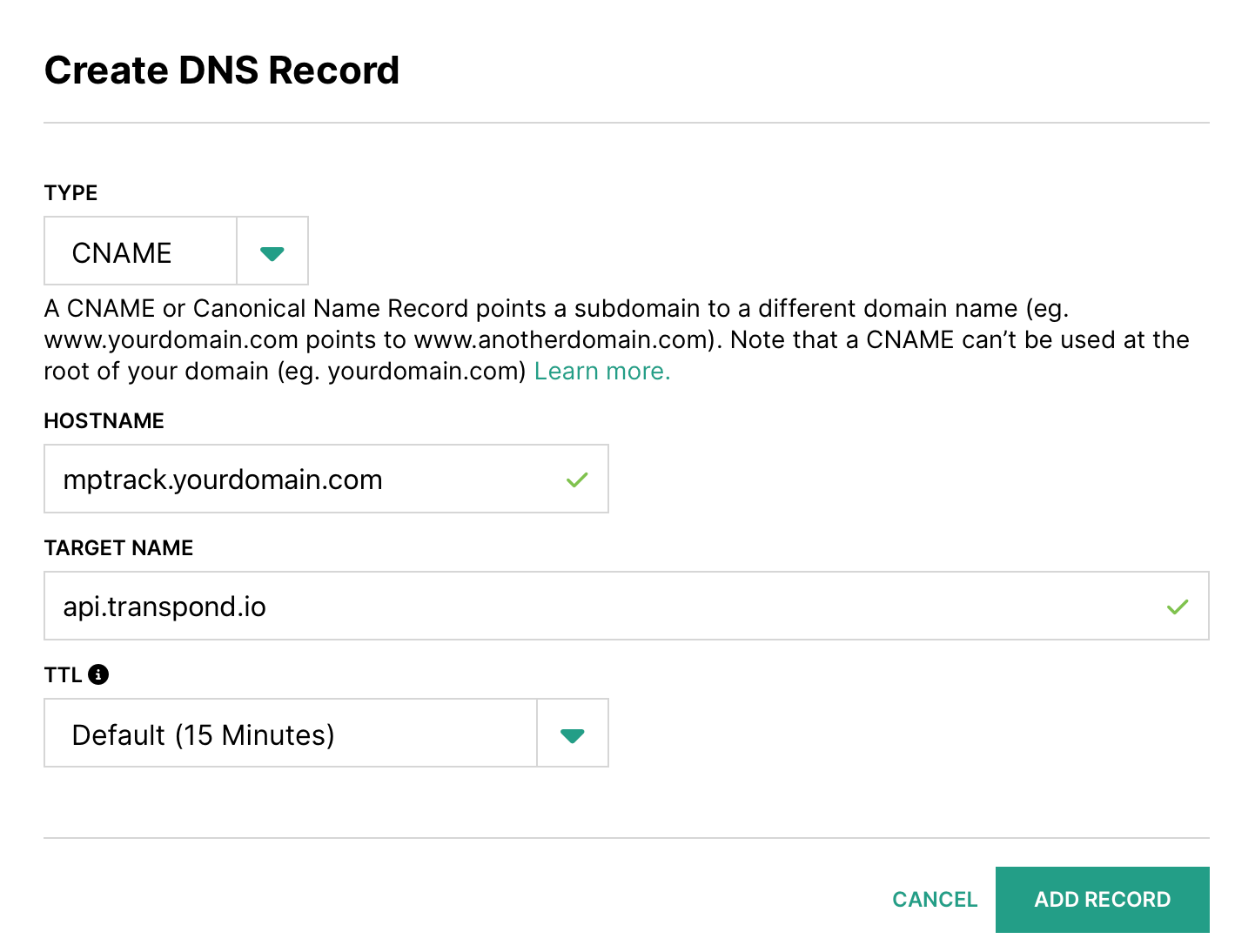
How to setup a Tracking domain record in Hover
- Select CNAME Record from the 'Type' drop down.
- Enter
mptrack.yourdomain.comin the HOSTNAME field. Replace yourdomain.com with your own domain. - Add
api.transpond.ioin the TARGET NAME field. - Click ADD RECORD to save the changes.
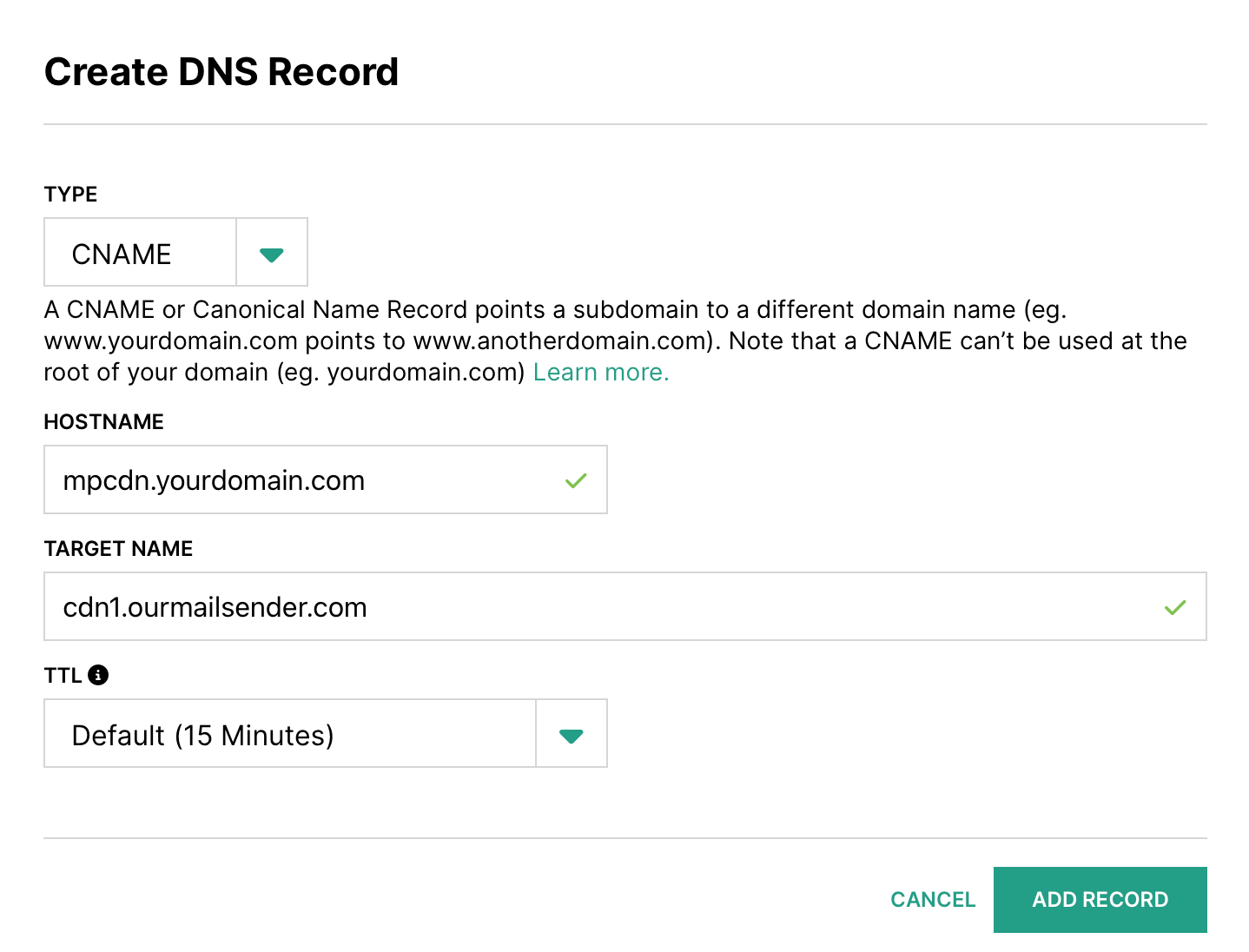
How to setup a CDN domain record in Hover
- Select CNAME Record from the 'Type' drop down.
- Enter
mpcdn.yourdomain.comin the HOSTNAME field. Replace yourdomain.com with your own domain. - Add
cdn1.ourmailsender.comin the TARGET NAME field - Click ADD RECORD to save the changes.