Creating a Plain Text Template
Plain Text templates are ideal when you want your emails to feel more personal and conversational rather than like a designed marketing newsletter.
They're perfect for updates, follow-up emails, product announcements, or messages that you want recipients to read as though they came directly from your inbox.
Although they're designed to be simple, you can still personalize your emails using merge tags and include links and images where needed.
Create a Plain Text template
- Go to Campaigns > Templates.
- Click Add Template.
- Choose Plain Text.
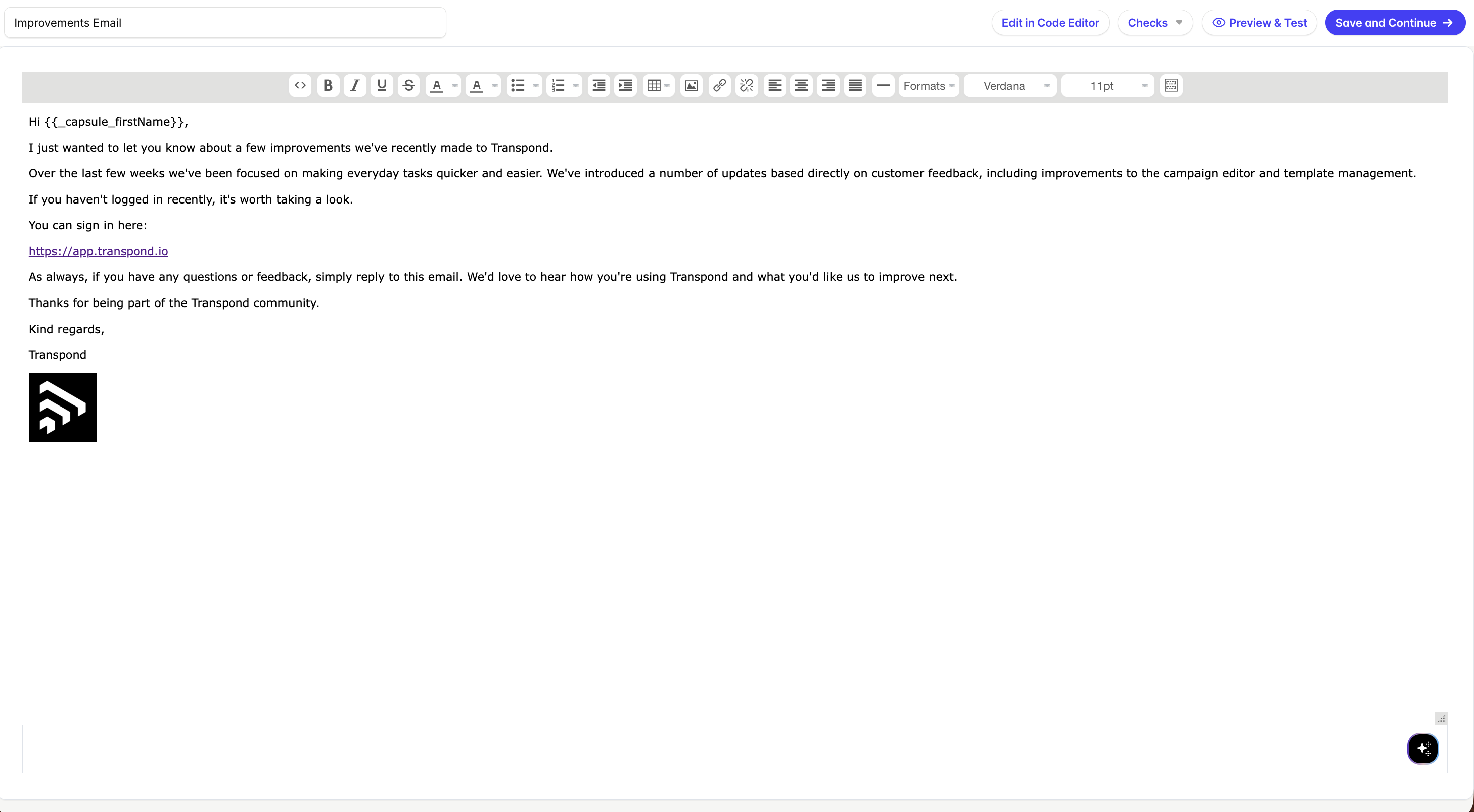
The editor opens with a simple writing interface.
What can I add?
Plain Text templates support:
- Text formatting
- Images
- Hyperlinks
- Merge tags
- File attachments
Unlike the Drag & Drop Editor, Plain Text templates don't support buttons or drag-and-drop content blocks.
When should I use a Plain Text template?
Plain Text templates work well for:
- Personal updates
- Follow-up emails
- Customer check-ins
- Event reminders
- Product announcements
- Messages where the content is more important than the design
Can I change it later?
Templates created as Plain Text can't be converted into Drag & Drop templates later.
If you think you'll need visual design elements such as buttons, columns or reusable content blocks, we recommend starting with the Drag & Drop Editor instead.