Creating an HTML Template
HTML templates give you full control over the structure and design of your email. They are a good choice if you already have an email template written in HTML, or if you are comfortable creating and editing email code yourself.
You can work directly in the code editor, preview your changes as you go, and switch to the WYSIWYG editor when you want to make visual edits without changing to the Drag & Drop Editor.
Create an HTML template
- Go to Campaigns > Templates.
- Click Add Template.
- Select From Code.
- Paste or write your HTML in the editor.
Your changes are saved automatically as you work.
What can I do in the HTML editor?
Using the HTML editor, you can:
- Write or paste your own HTML.
- Preview changes while you edit.
- Use merge tags to personalise your emails.
- Include files and hosted assets.
- Send test emails.
- Check links in your template.
- Switch to the WYSIWYG editor for visual editing.
When should I use an HTML template?
HTML templates are best suited to:
- Developers and designers who want full control over the email code.
- Customers who already have an HTML email template.
- Agencies creating custom templates for clients.
- Emails that need layouts or styling beyond the options available in the Drag & Drop Editor.
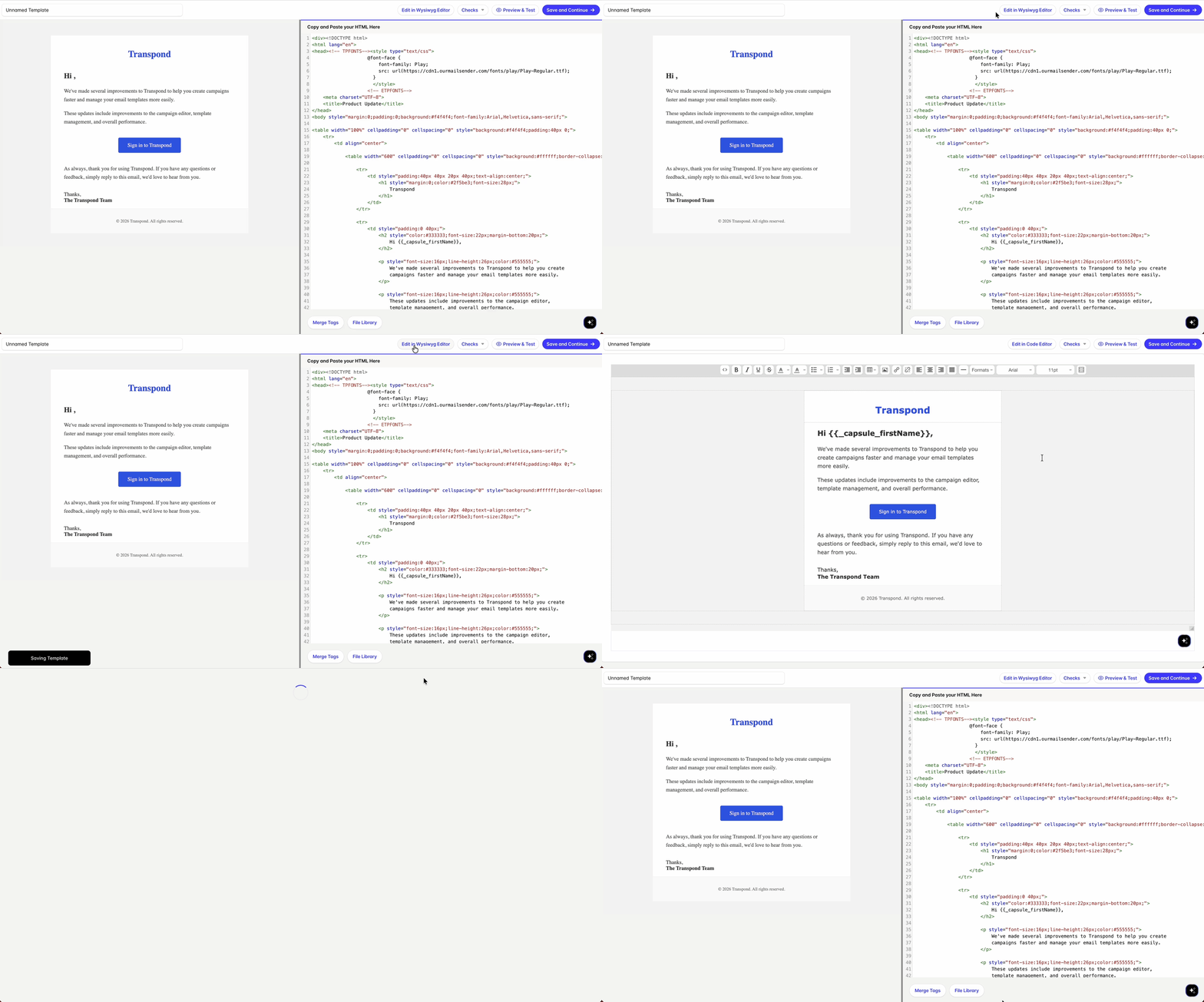
Preview your template
As you edit your HTML, you'll see a live preview of your template alongside the code editor. This lets you quickly check your layout and formatting as you work.
To preview your template in more detail, click Preview & Test. From here you can:
- View your template on desktop, tablet and mobile devices.
- Send yourself a test email.
- Preview your email as a specific contact.
Previewing merge tags
If your template contains merge tags, such as a contact's first name, they won't be populated in the live preview within the editor.
To see how merge tags will appear when the email is sent, click Preview & Test, then select Preview as a contact. Transpond will populate the merge tags using the details from the contact you choose, allowing you to see exactly how the email will appear to that recipient.
Things to know
HTML templates are designed for customers who are comfortable working with code. If you prefer to build your email visually using content blocks, columns and pre-built layouts, use the Drag & Drop Editor instead.