Adding Your Domains
A domain is your website address. Using your own domain for links, images, and sender info makes emails look professional, builds trust, and helps your messages reach inboxes.
Who can use this feature? All Staff
Available on: Free, Starter, Growth, Advanced and Ultimate
There are three domain types used in email sending. Click on each link below for more information on setting them up:
- Email Domain - Domain used to send outgoing emails.
- Tracking Domain - Domain used for link tracking.
- CDN Domain - Domain used to host images and media.
Once your Email, CDN, and Tracking domains are set up, your campaigns are ready to send. For stronger security and better deliverability, you can also configure CAA, SSL and MX records. Check out our Advanced Domain Security Guide to complete these settings.
Email Domain
An Email Domain is the domain Transpond uses to send your emails. By default, Transpond uses shared domains.
Configuring your own domains improves email deliverability and enables sending from addresses at your domain (such as hello@yourdomain.com ) instead of Transpond’s generic domains. To do this, you need to set up, verify and authenticate your domain.
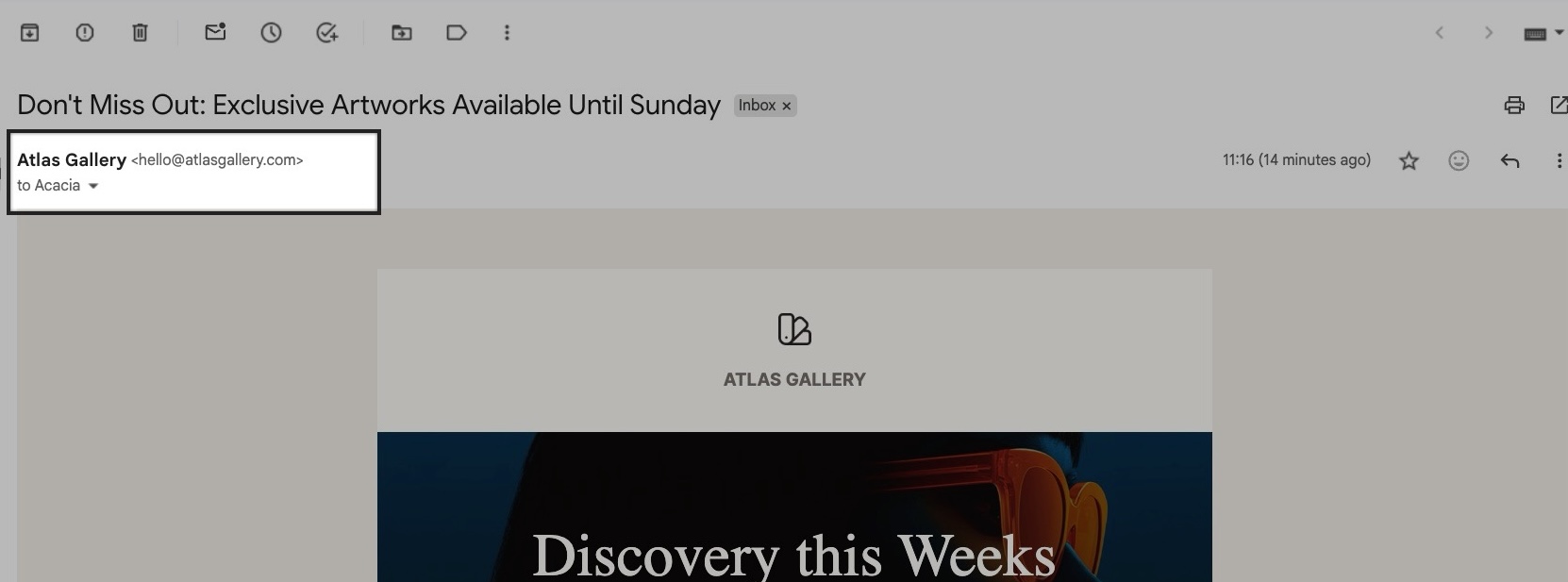
To strengthen your deliverability further and help prevent your Campaigns from ending up in Spam, set up a DMARC record for your domain.
How to add your Email Domain to Transpond
You should add and verify all domains you plan to send from in Transpond.
- Go to Account Settings > My Domains
- Click + Add Domain
- Enter the domain or subdomain you would like to use with Transpond
- Enter an email address at that domain and click Send Verification Email
- Check your inbox and click the Verify Domain button to complete this step.
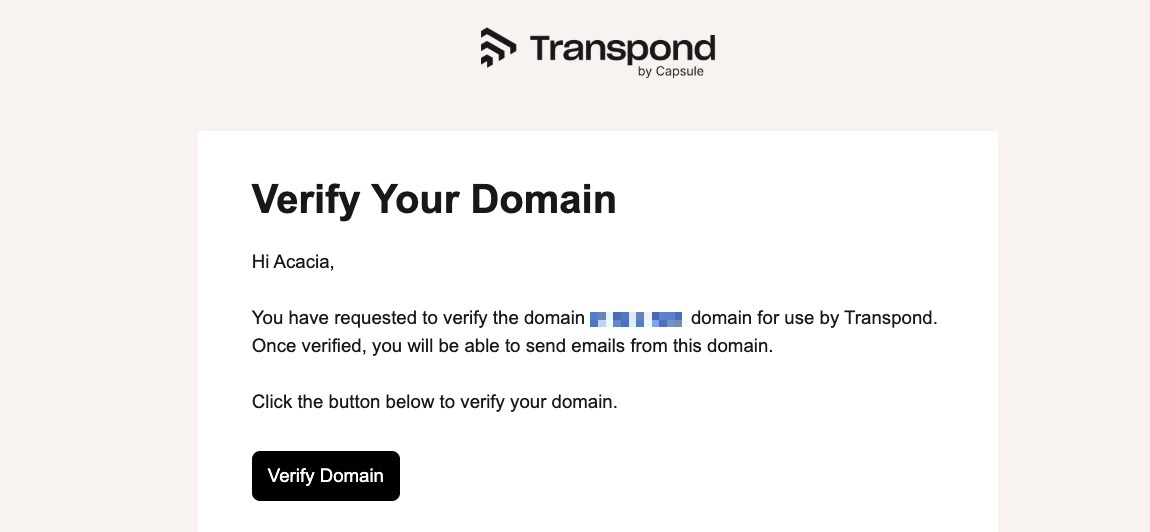
- Once your domain has been successfully verified, it is now time to authenticate it. Authenticating your domain requires making some small changes to your DNS settings.
📙 Learn how to Authenticate your Email Domain.
Tracking Domain
A Tracking Domain lets Transpond use your own website address for tracking links in emails, instead of the default Transpond link. This makes your links look more professional and improves email reporting.
How to add your Tracking Domain to Transpond
- Go to Account Settings > My Domains
- Under Improve Email Deliverability, choose Add Tracking Domain
- Copy the CNAME value provided
- Log in to your DNS provider’s account and find your domain’s DNS settings
- Add the copied CNAME record to your DNS settings
📙 Learn how to update your DNS Settings in popular DNS providers.
6. Wait up to 48 hours for the changes to take effect. Once verified, your tracking domain is ready to use.
Accounts on the Free plan do not generate SSL Certificates for Tracking Domains. Learn more in our Advanced Domain Security Guide.
CDN Domain
A CDN Domain (Content Delivery Network) lets your images and media in emails load from your own website address instead of Transpond’s. This makes your emails look more trustworthy.
How to add your CDN Domain to Transpond
- Go to Account Settings > My Domains.
- Under Improve Email Deliverability, choose Add CDN Domain.
- Copy the CNAME value provided
- Log in to your DNS provider’s account and find your domain’s DNS settings
- Add the copied CNAME record to your DNS settings
📙 Learn how to update your DNS Settings in popular DNS providers.
6. Wait up to 48 hours for the changes to take effect. Once verified, your tracking domain is ready to use.
Accounts on the Free plan do not generate SSL Certificates for CDN Domains. Learn more in our Advanced Domain Security Guide.